

Compile
- Open a
.texfile in your project’s files. (No file yet? Click New file →.tex, or start from a template.) - Press Mod + S (⌘S or Ctrl+S), or click Recompile.
- The PDF appears on the right.
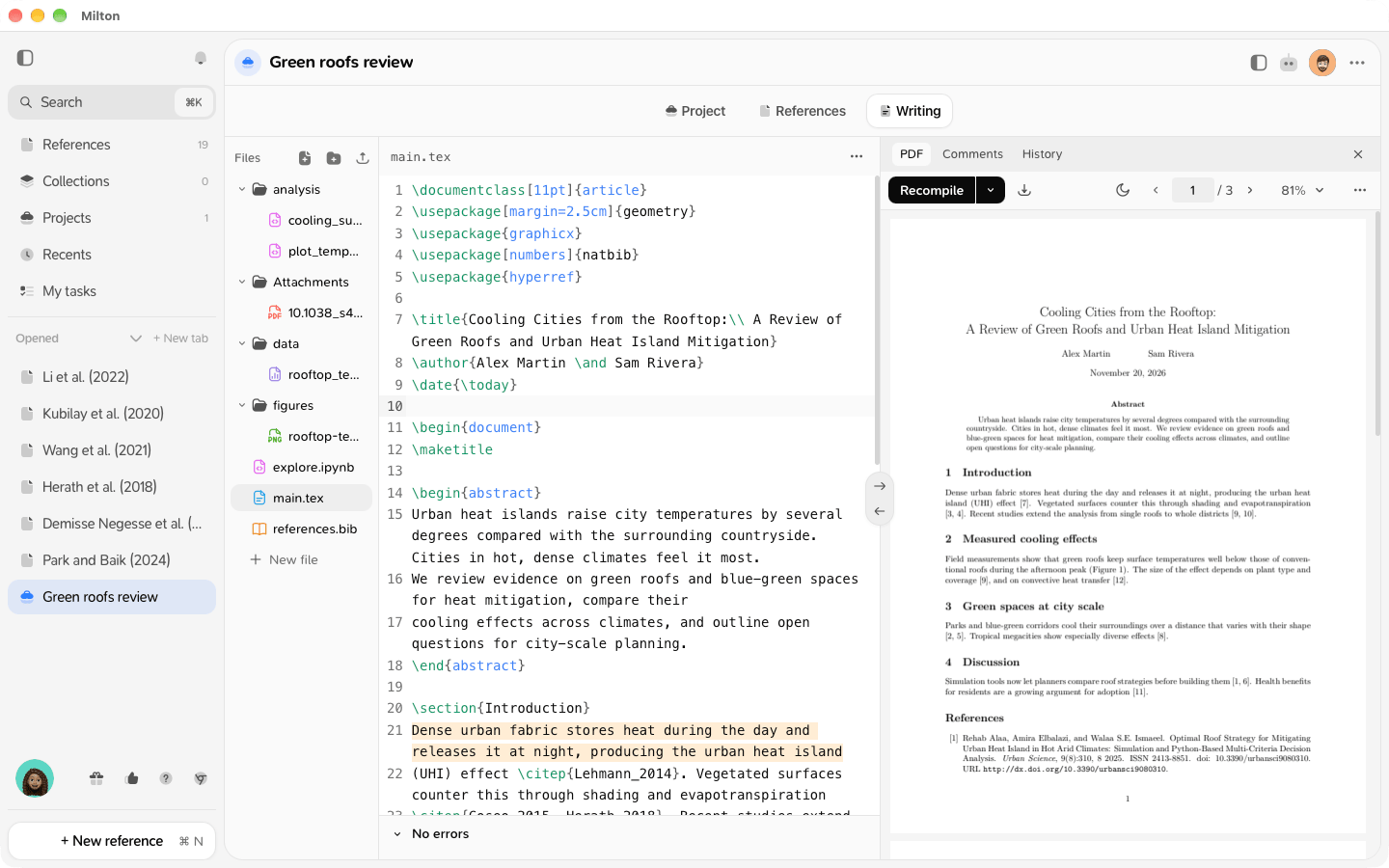
Compile as you type
Click the chevron next to Recompile (Compile options) and turn on Auto-compile. Milton then shows a quick preview a couple of seconds after you stop typing. Citations may show as ?? in the preview until you compile fully.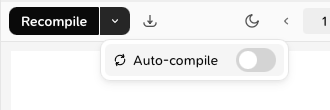
Download the PDF
Click the download icon in the PDF bar (Download PDF). To prepare a submission, see Export for submission.Several main files
If more than one file starts with\documentclass, Milton asks you to Choose the main file.
Errors
When a compile fails, Milton keeps showing the last good PDF and lists the problems under the editor. Click an error to jump to its line. With a subscription (or a local agent), click Fix with agent to have the agent propose a fix.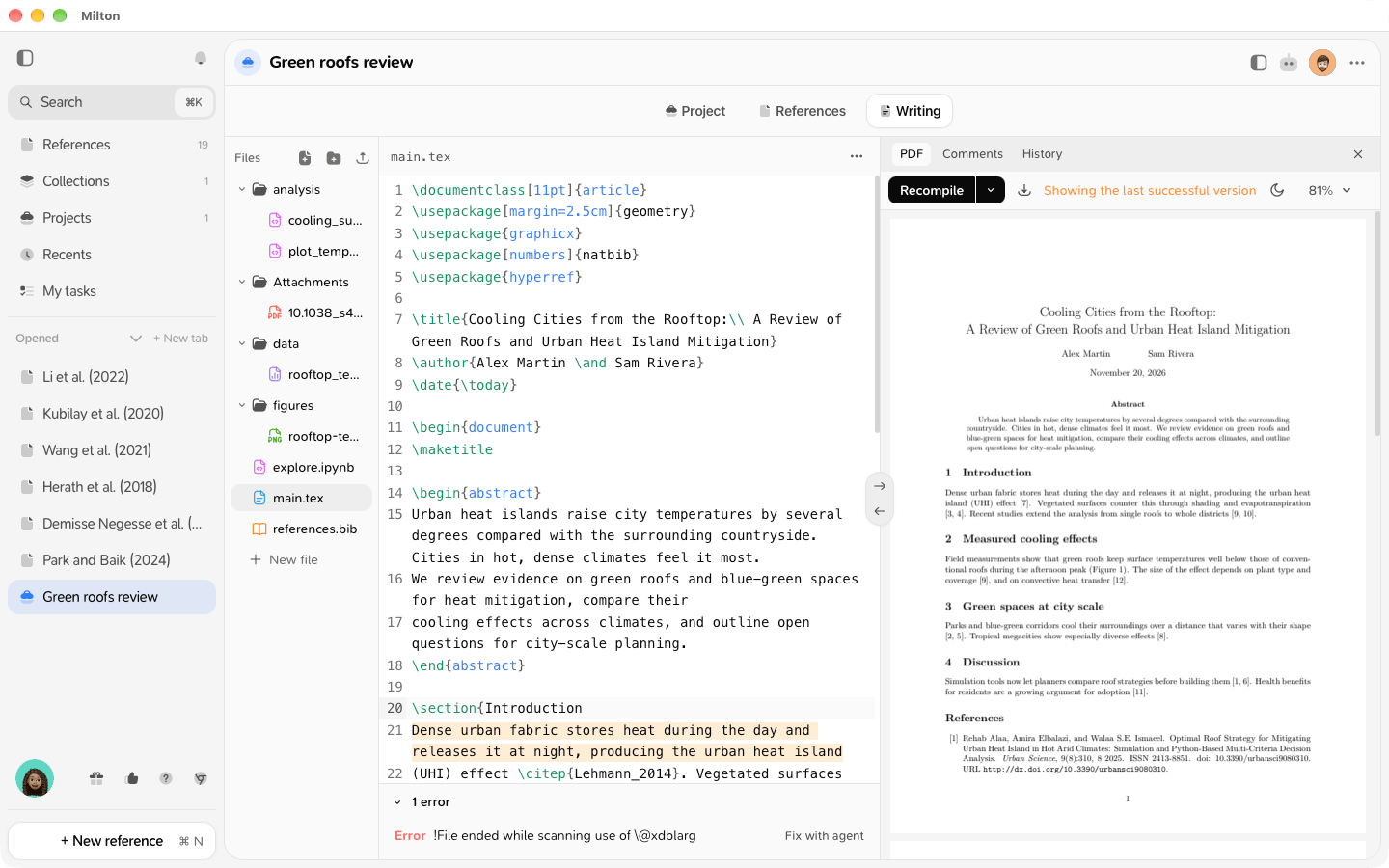
- “This document needs a LaTeX package that hasn’t been downloaded yet”: connect to the internet once and recompile.
- “This document asks for biber, which Milton doesn’t include.”: use
backend=bibtexin\usepackage[...]{biblatex}. - “Compilation took longer than 2 minutes and was stopped.”: look for a loop or a very large figure.
Jump between source and PDF
Use the arrows on the divider between the editor and the PDF: Show this line in the PDF (Mod + Shift + J) and Show this place in the source.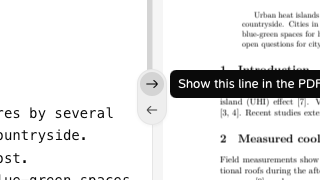
Editor tips
- Mod + / comments or uncomments a line.
- The ⋯ menu (Editor options) has Wrap lines, Export… and Apply changes automatically.
- Insert figure… in the Editor options (⋯) menu above the editor adds a figure. See Add figures.
The first download of packages goes to the public TeX package host, which sees the package names and your IP address, never your text.