

Before you start
- Publishing is part of a Milton subscription. See Plans.
- In a shared project, only the owner can publish.
Publish
- Open the project or collection.
- Click Share in the header (or open the ⋯ menu on its card and choose Share). For a single reference, open its ⋯ menu and choose Share.
-
For a project, click the Publish tab. A collection opens on it directly.
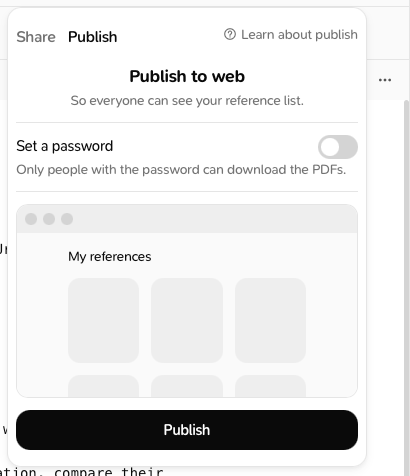
- Optional: add a password (see below).
- Click Publish. For a single reference, the button is Create link.
milton.so/s/…). Click Copy to copy it, or See website to open it.
Protect it with a password
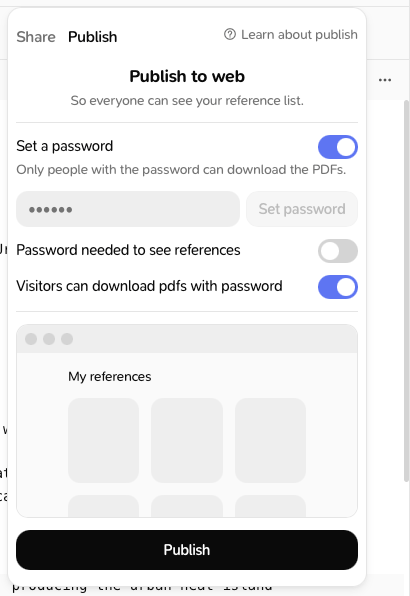
- Before publishing (or on a live page), turn on Set a password.
- Type a password of at least 8 characters and click Set password (Update password on a live page).
- Choose what the password protects:
- Password needed to see references: visitors must enter it to see the list.
- Visitors can download pdfs with password: visitors with the password can download the PDFs.
Keep the page up to date
Automatically update published website at each change detected. is on by default. If you turn it off and change the project, the panel says “This has changed since you published it. The public page still shows the older version.” Click Publish again to update it. If you see “Some changes are still syncing…”, wait a moment first.Unpublish
Open the Publish tab and click Unpublish (Turn off for a single reference). The page and its link stop working. Unpublishing doesn’t remove anyone from a shared project.Good to know
- Links don’t expire.
- Each item has one live link. If you unpublish and publish again, the page gets a new link and the old one stops working.
- Notes, highlights, materials and custom properties are never published.