

Open the history
Open a file and click the clock icon (History) above the editor, or the History tab in the pane next to the PDF. Choose All files or This file.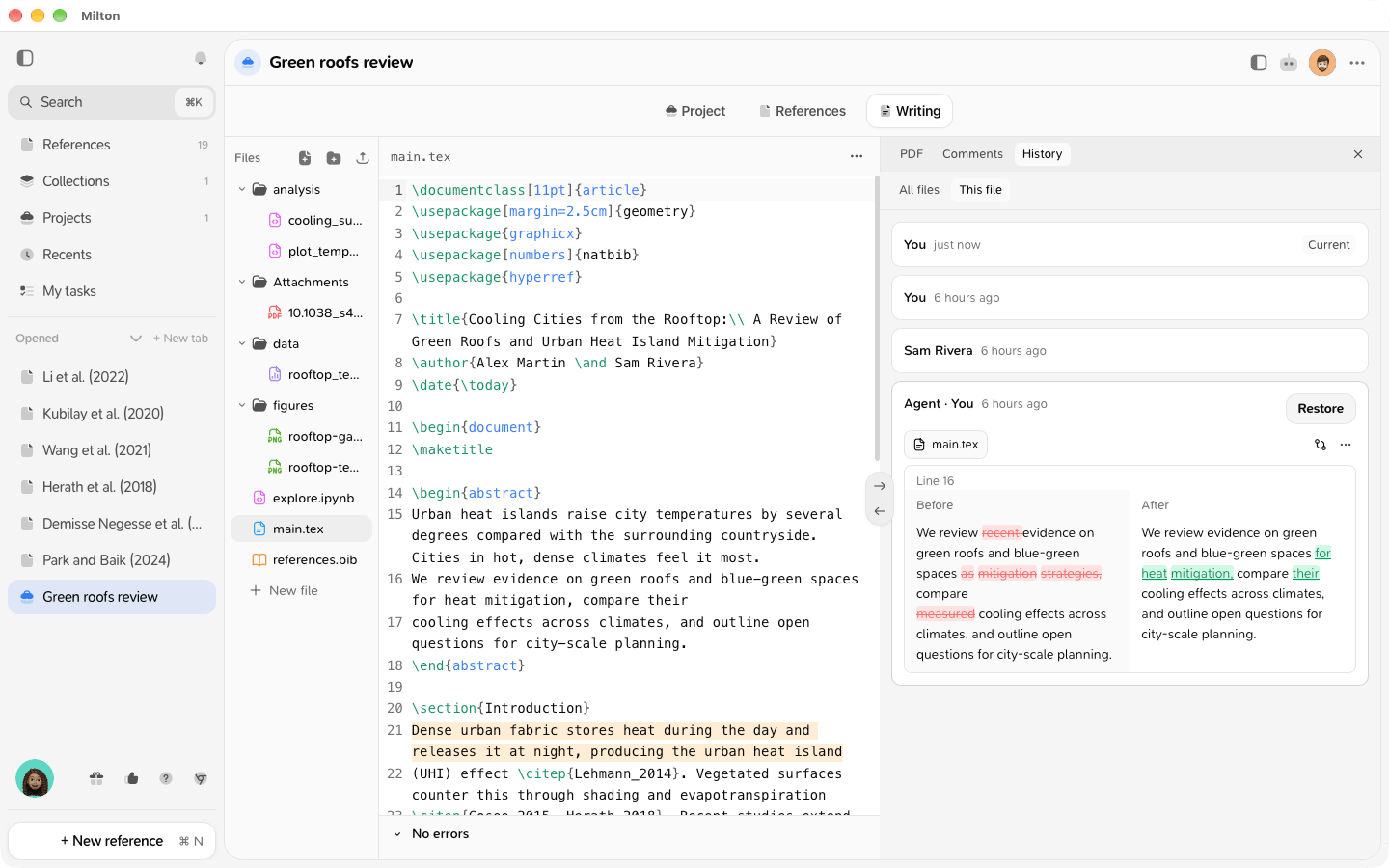
Read the list
Versions are listed newest first, with who made them: you, a co-author, or the agent (“Agent · name”). The newest is marked Current. A version closes after about 10 minutes without changes. Click Show older to see more. Everything written before Milton 1.6 appears as a single version called Earlier.Compare
Click a version to see what changed. Use the toggle at the top to switch between Side by side (Before and After) and Inline (removed text struck through, added text highlighted). To compare two versions, open a version’s ⋯ menu (Version options) and choose Compare with….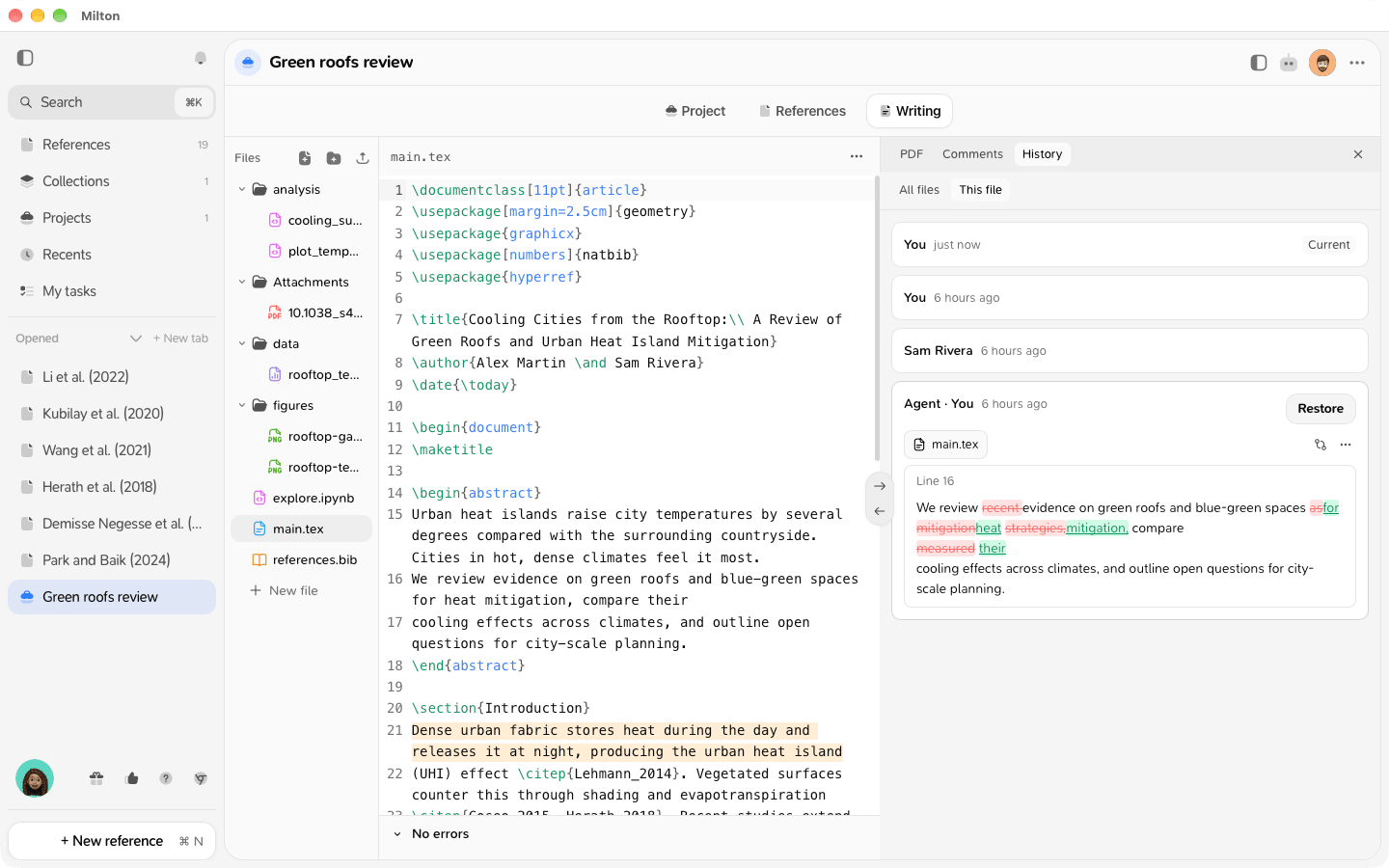
Name a version
Open the version’s ⋯ menu and choose Name this version, for example “Sent to reviewers”. Co-authors see the name.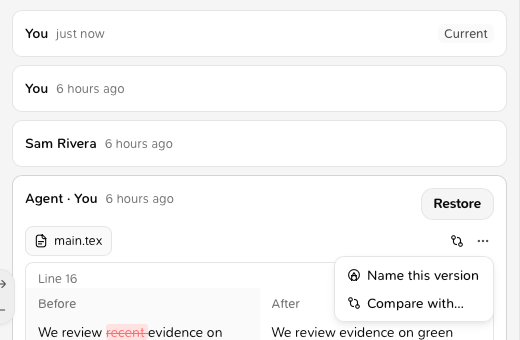
Restore
Click a version, then click Restore. The restore is a new change in your name: nothing is erased, so you can always come back.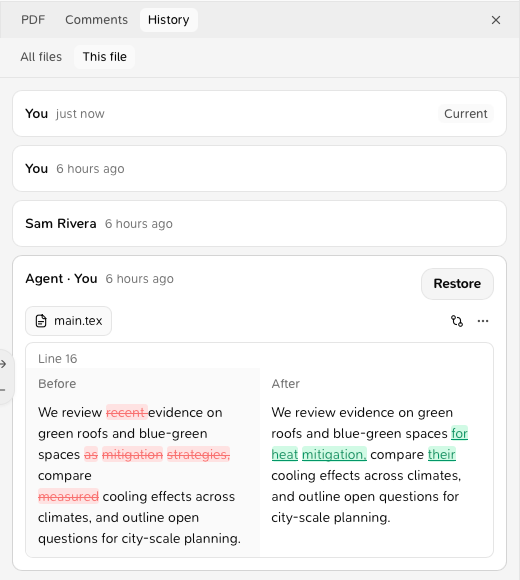
- The history covers text files: LaTeX, Markdown, code. Not images or PDFs.
- In a shared project, everyone sees the same history. Viewers can look and compare, but not name or restore.