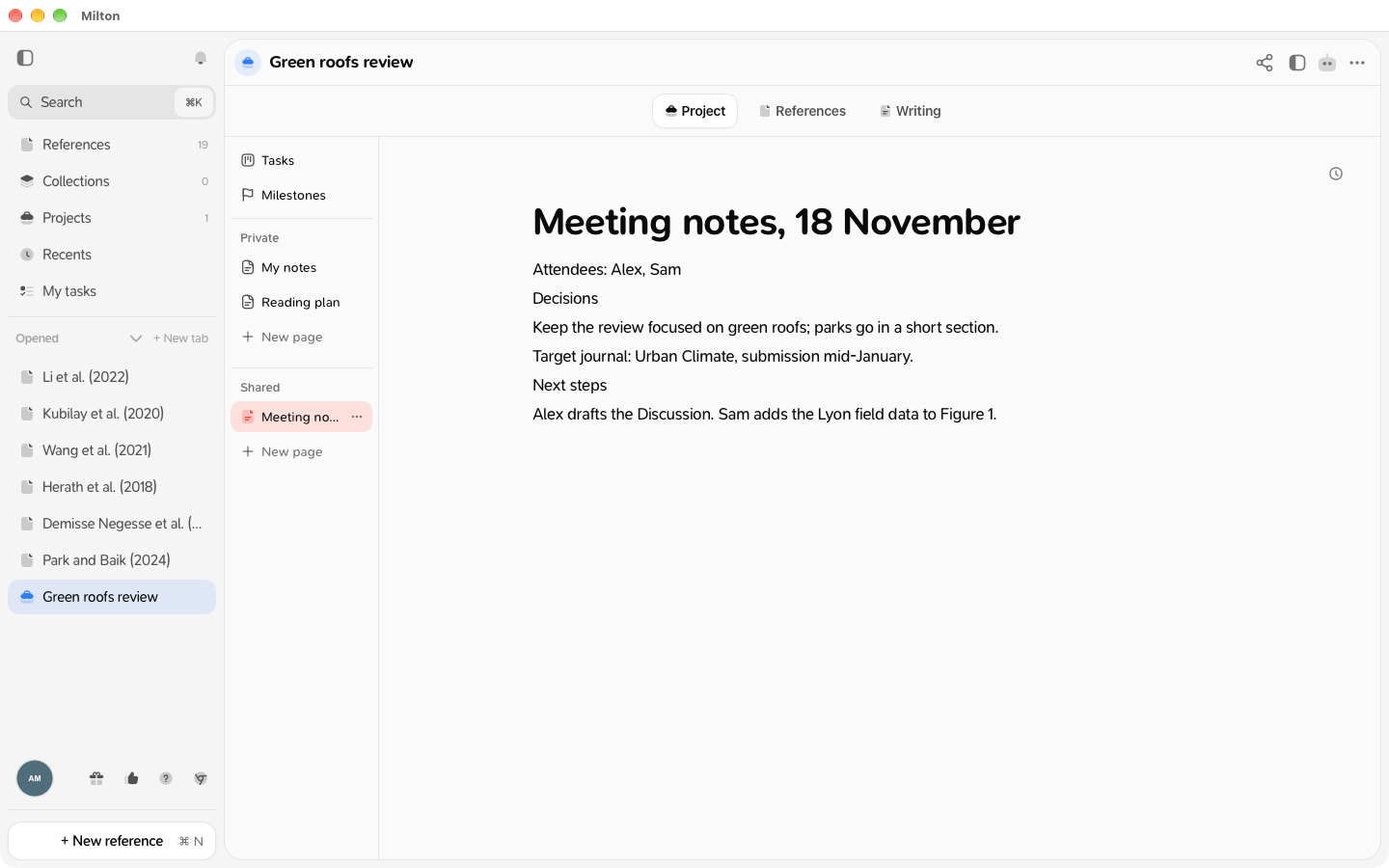
The Project tab of a project holds pages: plans, meeting notes, to-do lists, drafts of ideas. Pages can contain sub-pages, so you can build a tree.
The Project tab with the page explorer on the left (Private and Shared sections) and a page open on the right

Private and Shared

The column on the left starts with Tasks and Milestones (see Track tasks on a board and Milestones), then lists your pages in two sections:
  • Private: pages only you can see. They stay on your device and in your own backup. They’re never sent to co-authors or to agents.
  • Shared: pages every member of the project can see. In a shared project, members edit them together in real time; viewers can only read.
My notes, the note you had on the project before, is now a private page at the top of Private. Its content is kept as it was.

Create a page

  1. Open the project and click the Project tab.
  2. Click New page in the Private or Shared section.
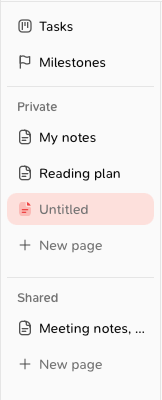
    The page explorer with New page in the Private section and a new Untitled page
  3. Type a title. The page starts as “Untitled”.
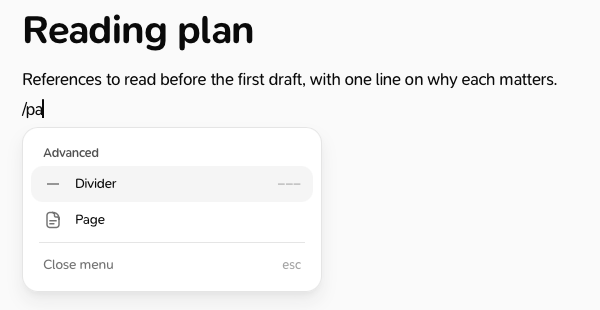
To create a page inside another one, open the ⋯ menu on its row and choose New page, or type / in a page and choose Page: Milton adds a sub-page where your cursor is and opens it.
The / menu in a page, with Page to add a sub-page

What you can put in a page

Pages use the same editor as reference notes: headings, lists, to-do lists, code, quotes, callouts, dividers, a table of contents, maths and images. Type [[ to link another page, or @ to mention a co-author, a page, a reference or a file. See Link pages and mention people.

Organise pages

  • Drag a page in the explorer to reorder it or put it inside another page.
  • ⋯ menu on a page: New page, Rename, Move to shared (private pages only), Delete.
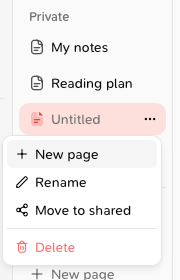
The ⋯ menu on the Reading plan page: New page, Rename, Move to shared and Delete

Share a private page

  1. Drag the page into Shared, or choose Move to shared in its ⋯ menu.
  2. In Share this page?, click Share.
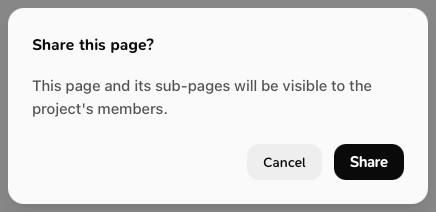
    The Share this page? window
The page and its sub-pages become visible to the project’s members.
Moving a page to Shared is one way: a shared page can’t become private again.

Delete and restore a page

Delete in the ⋯ menu removes the page and its sub-pages right away, without a confirmation. A deleted shared page can be brought back from History (the clock icon above the page), and a page that was deleted shows “This page was deleted.”. See Project history.
Last modified on November 21, 2026