

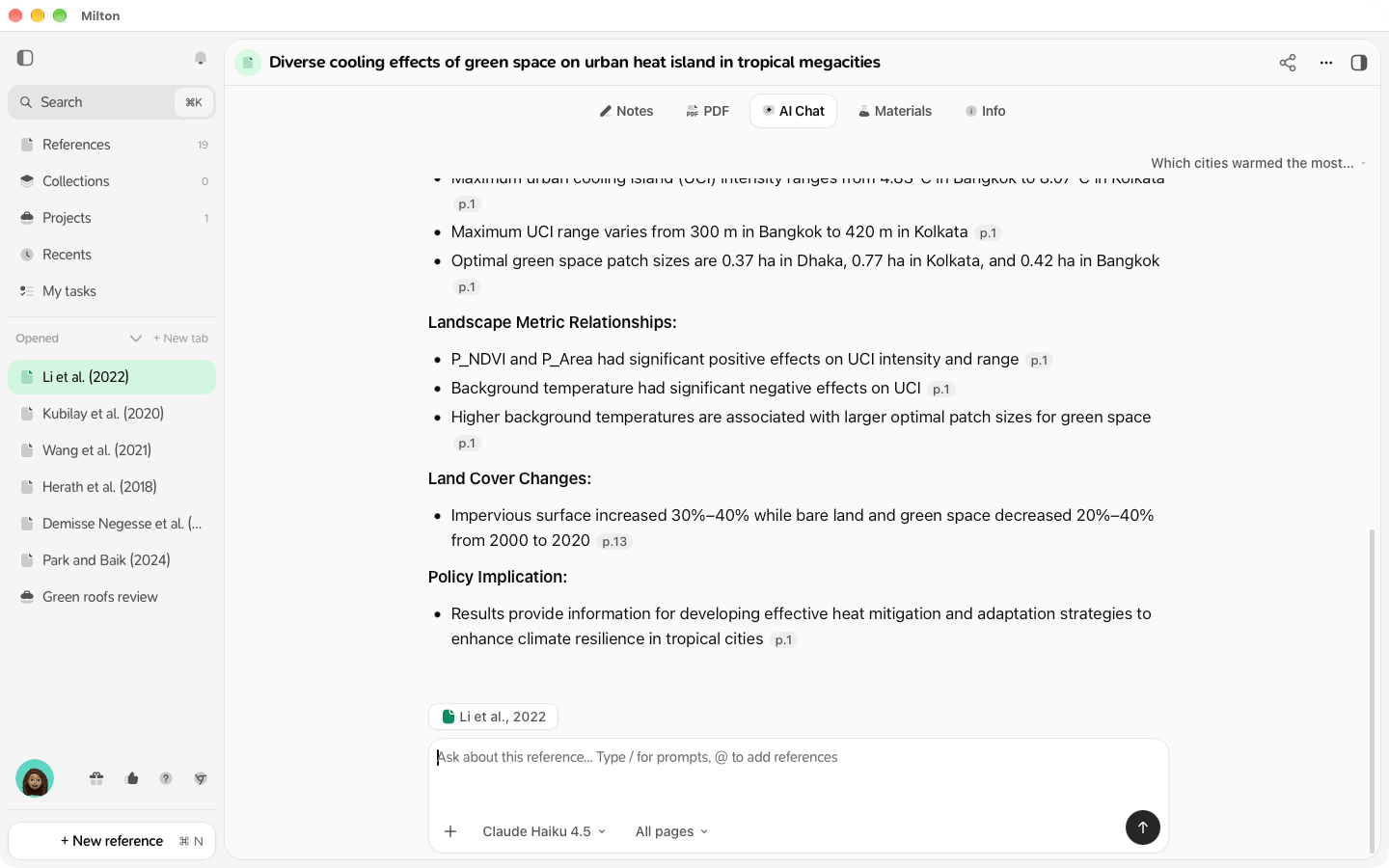
Ask about one reference
- Open a reference that has a PDF.
- Click the AI Chat tab.
- Type your question.
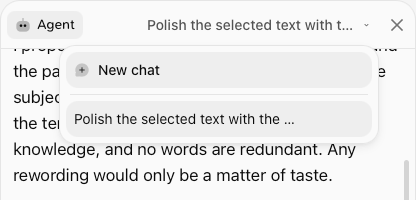
Ask about a collection or a project
- Open the collection or project.
- Click Agent panel (the robot icon) on the right of its name.
- Type your question. The chat uses every reference in it.
Check the sources
Click a citation in an answer: Milton opens the reference’s PDF at the cited page and highlights the passage when it can find it.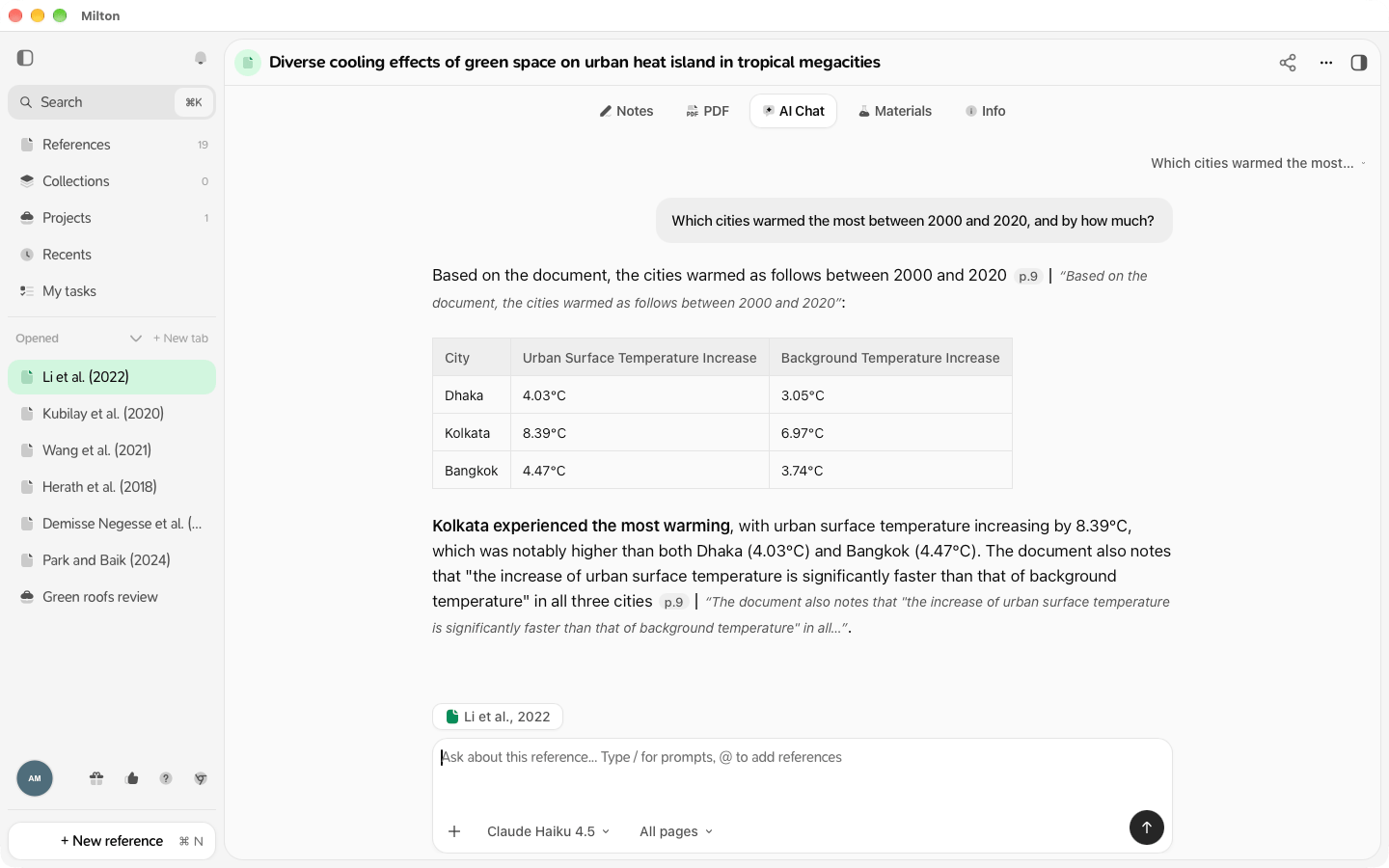
Choose a model
Pick the model from the chat’s model menu. On the free plan, the chat uses Claude Haiku; the other models show “Needs a paid plan”.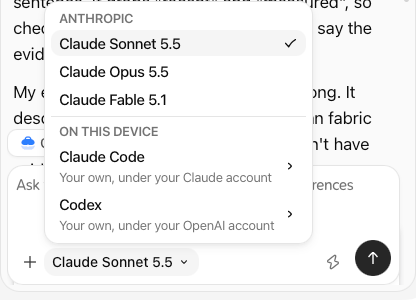
Credits
Each message uses AI credits. The free plan includes 300 credits to try it.Indexing
With a subscription, Milton prepares (indexes) your PDFs in the background so the AI can search them. If some aren’t ready yet, the chat says how many PDFs aren’t included and offers to re-index them. A reference’s ⋯ menu also has Re-index this paper.If something goes wrong
- “You’re out of AI credits.”: see AI credits.
- “That model isn’t available on your plan.”: choose another model or upgrade.
- “The AI server isn’t answering. Try again in a few minutes.”