Add a checklist
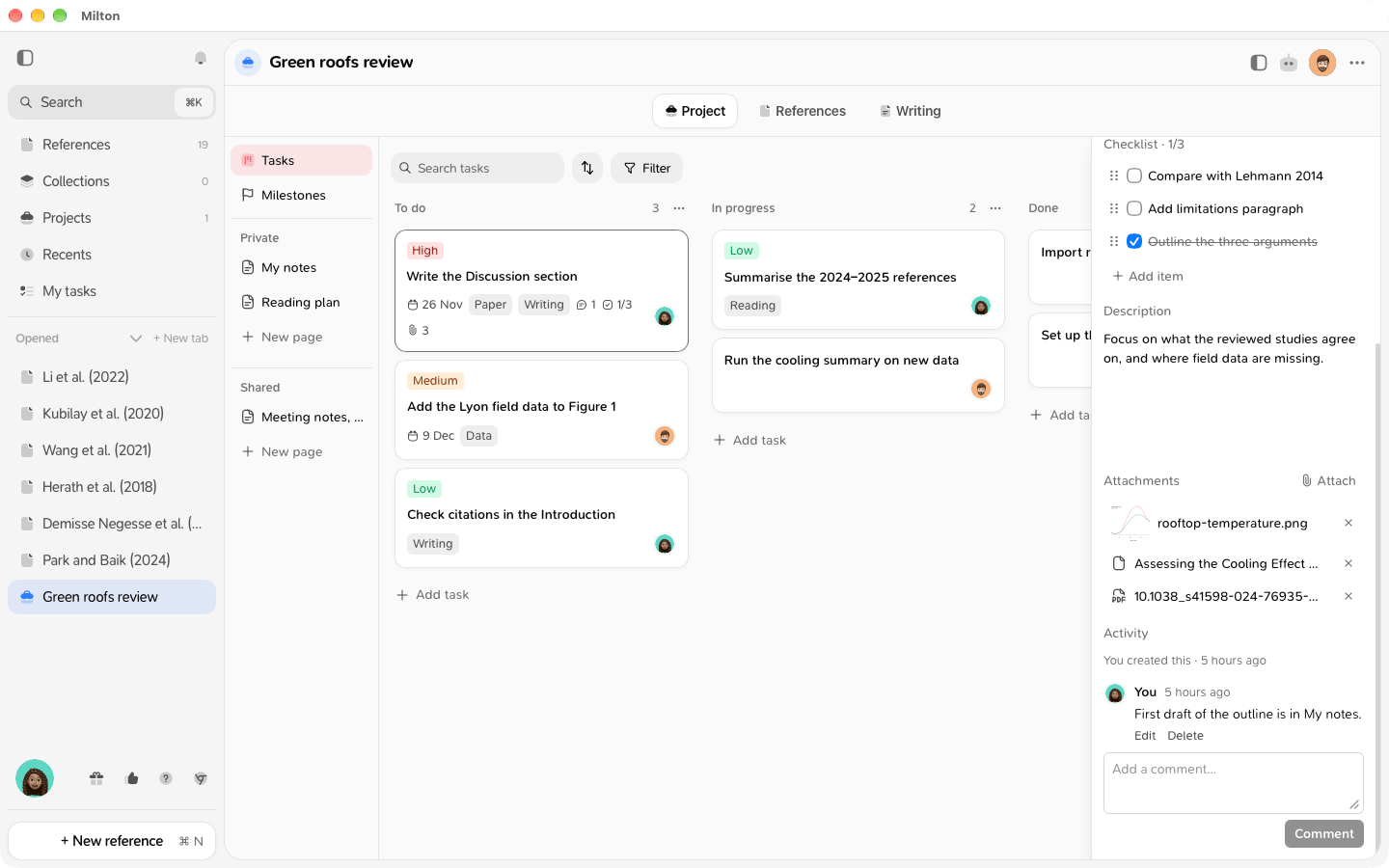
Split a task into smaller steps.- Open the task.
- Under Checklist, click Add item.
-
Type the step and press Enter.
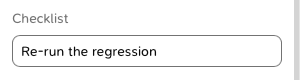
- Edit an item: click its text, type, then press Enter. Escape cancels.
- Reorder items: drag them by the handle on the left.
- Delete an item: hover it and click ×.
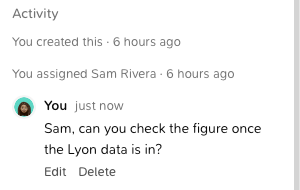
Follow a task’s activity
The Activity section at the bottom of a task lists, oldest first:- who created the task (“You created this”),
- each move to another column (“Anna moved this to In progress”),
- each change of assignee (“Anna assigned you”, “Anna unassigned this”),
- the task’s comments.