

.bib) or RIS (.ris) file. Milton imports both.
Import the file
-
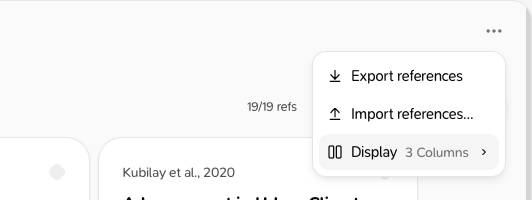
On the References page, click the More options button at the top right (the settings icon) and choose Import references…. You can also use the BibTeX / RIS tab of the Add reference window.
-
Click Choose file and pick your
.bib,.risor.txtfile. -
Milton shows what it found, for example “120 references found · 4 already in your library”.
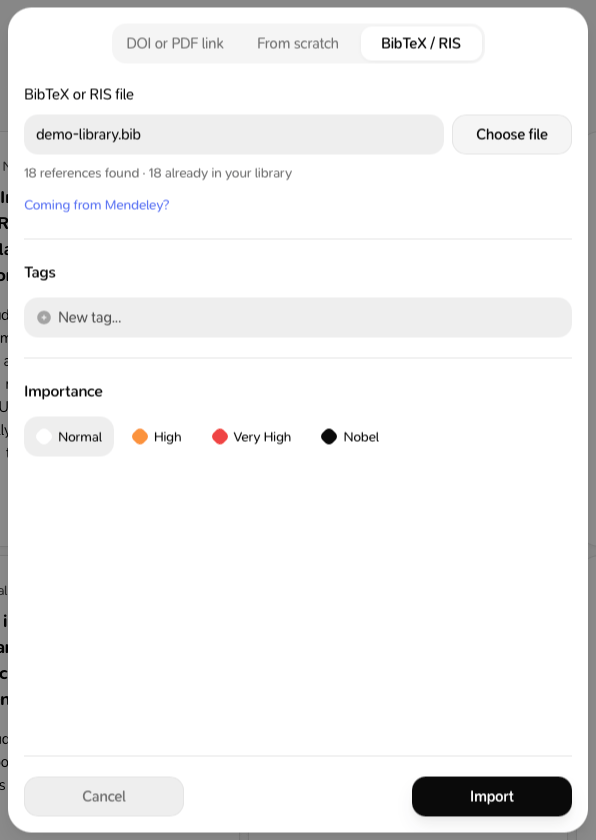
- Optional: add Tags and an Importance for the new references.
- Click Import.
What comes over
- All the bibliographic details
- Keywords, as tags
- Notes in the file (
annoteorN1), in the reference’s notes under “Note imported from file” - PDFs the file points to, if they’re on your device, inside your home folder, and 200 MB or smaller
Coming from Mendeley
- Open Mendeley Reference Manager.
- Select the references you want to bring over.
- Click Export in the action panel, then choose BibTeX (.bib).
- Import that file in Milton as above.
EndNote XML and CSL-JSON files aren’t supported. From EndNote, export as RIS or BibTeX. EndNote’s internal PDF links aren’t followed.