

Add a comment
- In a project file, select a passage.
-
Right-click the selection, or press ⌘⇧A (Ctrl+Shift+A on Windows and Linux), and choose Comment.
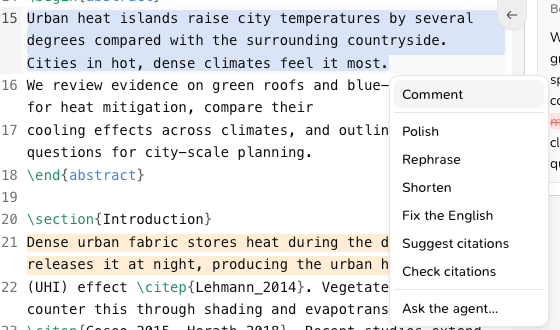
-
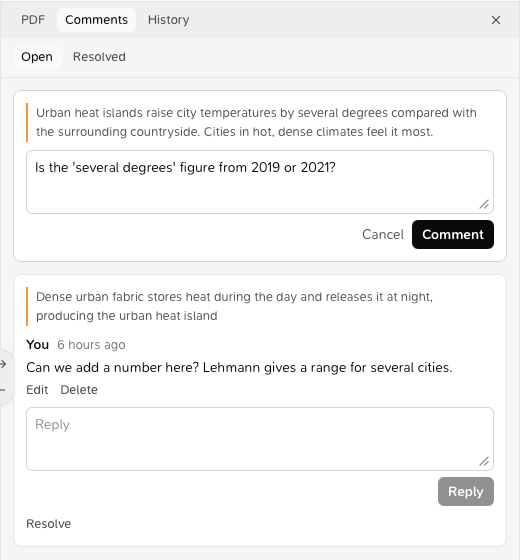
Type your comment and click Comment.
Reply and mention someone
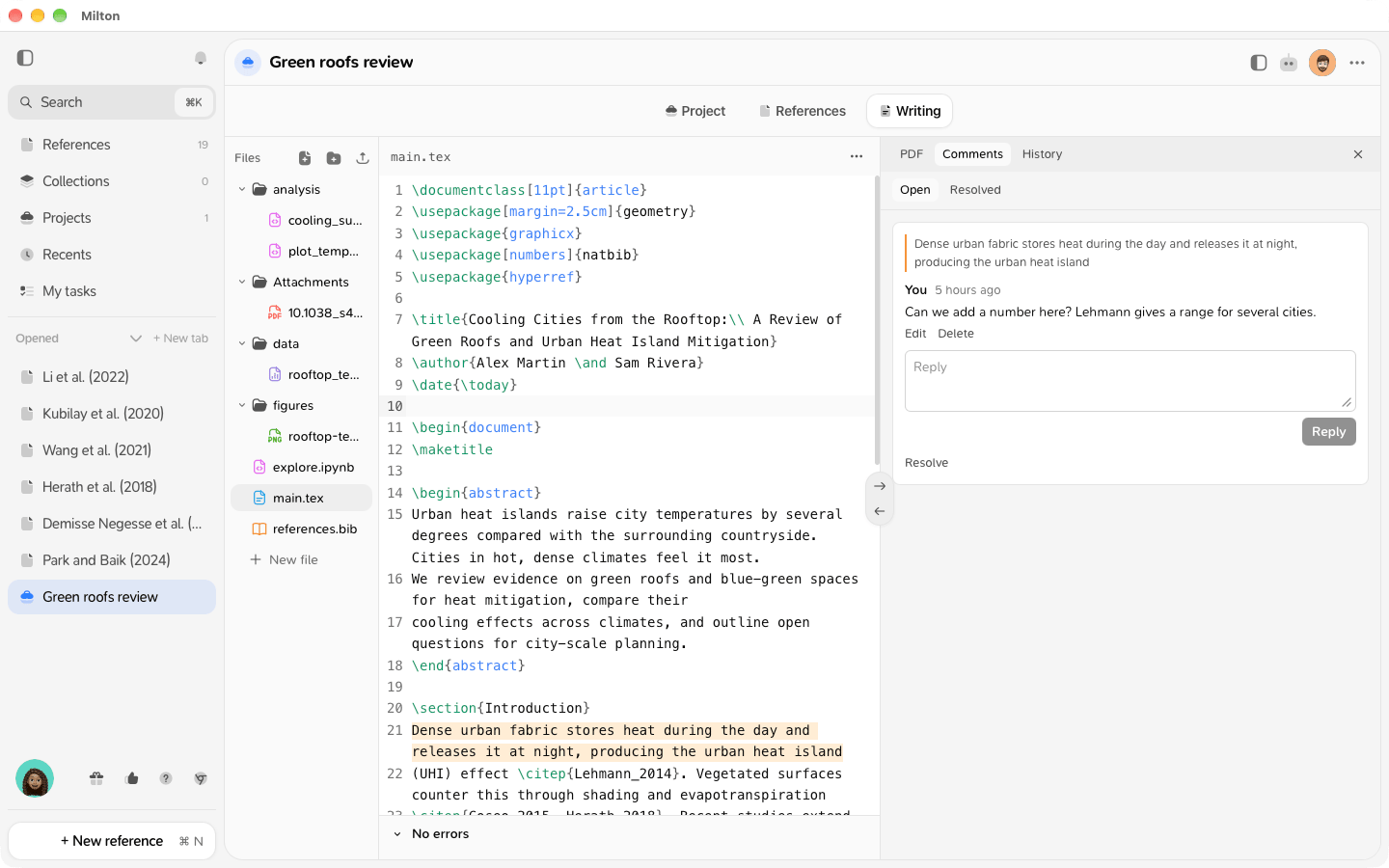
- Type in the Reply box under a comment to answer it. Resolved threads have no Reply box until you reopen them.
- Type @ to mention a member of the project. They get a notification under the bell (“Mentioned you in a comment in the project project.”). Clicking it opens the passage.
Resolve a thread
Click Resolve when the discussion is done. Use the Open and Resolved filters at the top of the panel to switch between them, and Reopen to bring a thread back.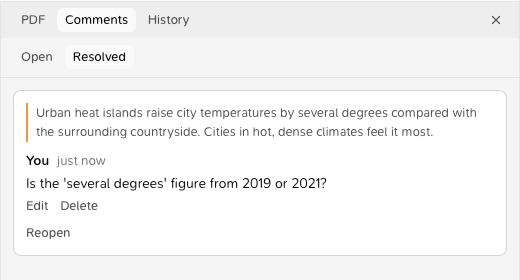
Edit or delete
You can Edit (then Save) or Delete your own comments. Deleting the first comment of a thread deletes the whole thread.Good to know
- Every member can comment, including viewers.
- The highlight follows the text as it’s edited. If the passage is deleted, the thread stays and says “The passage was deleted”.
- In a shared project, comments are stored on Milton’s servers so everyone sees them. In a project you haven’t shared, they stay on your device. If you share the project later, the earlier comments aren’t sent.
- To discuss a task rather than a passage, see Comment on a task.