

Open My tasks
Click My tasks in the sidebar. Your tasks are shown on a board with three columns: To do, In progress and Done. Each card shows the project it belongs to. Tasks with the nearest due date come first.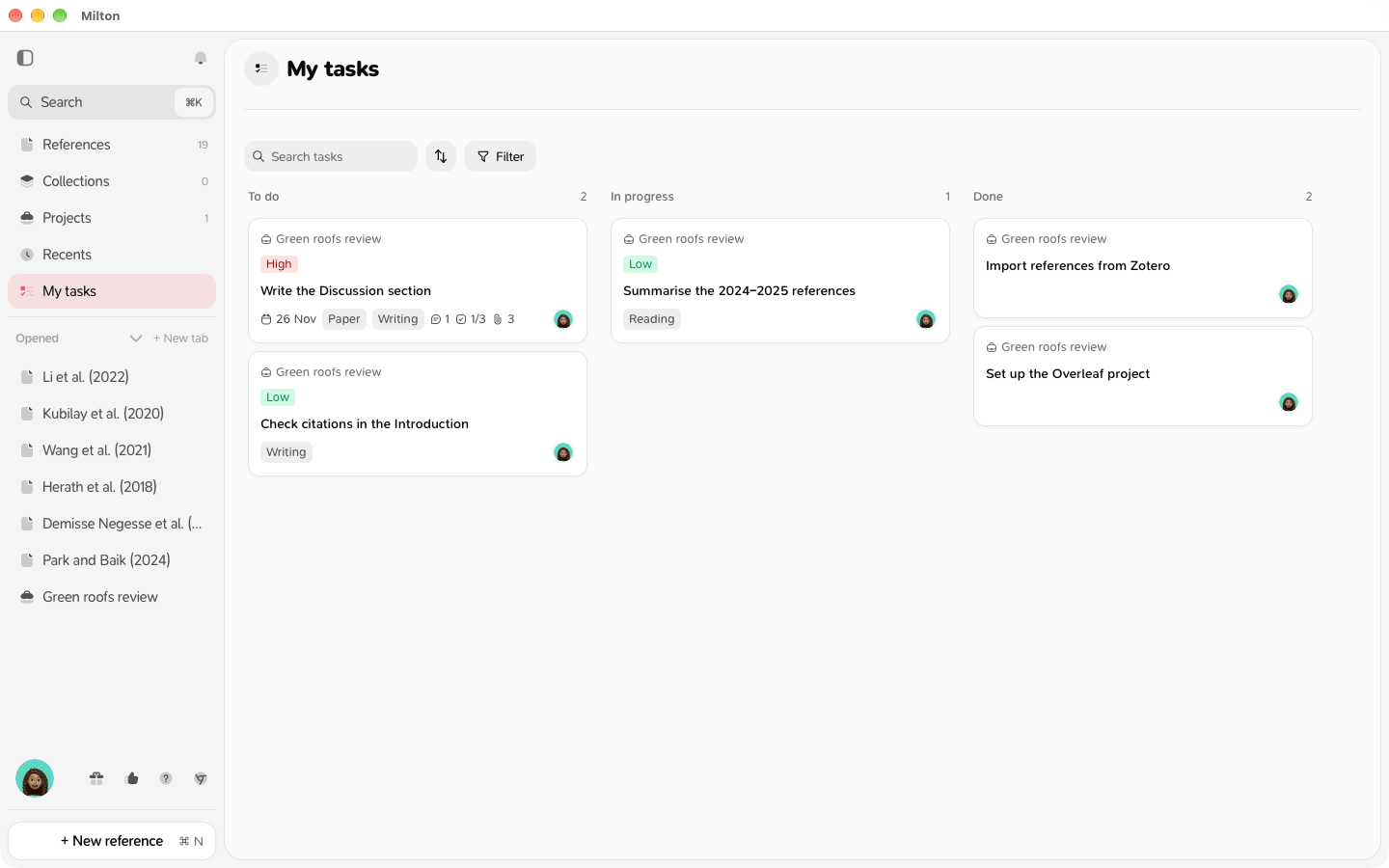
- To do holds the tasks in the first column of their project’s board.
- Done holds the tasks in the last column.
- In progress holds the tasks in any column in between.
Work on a task
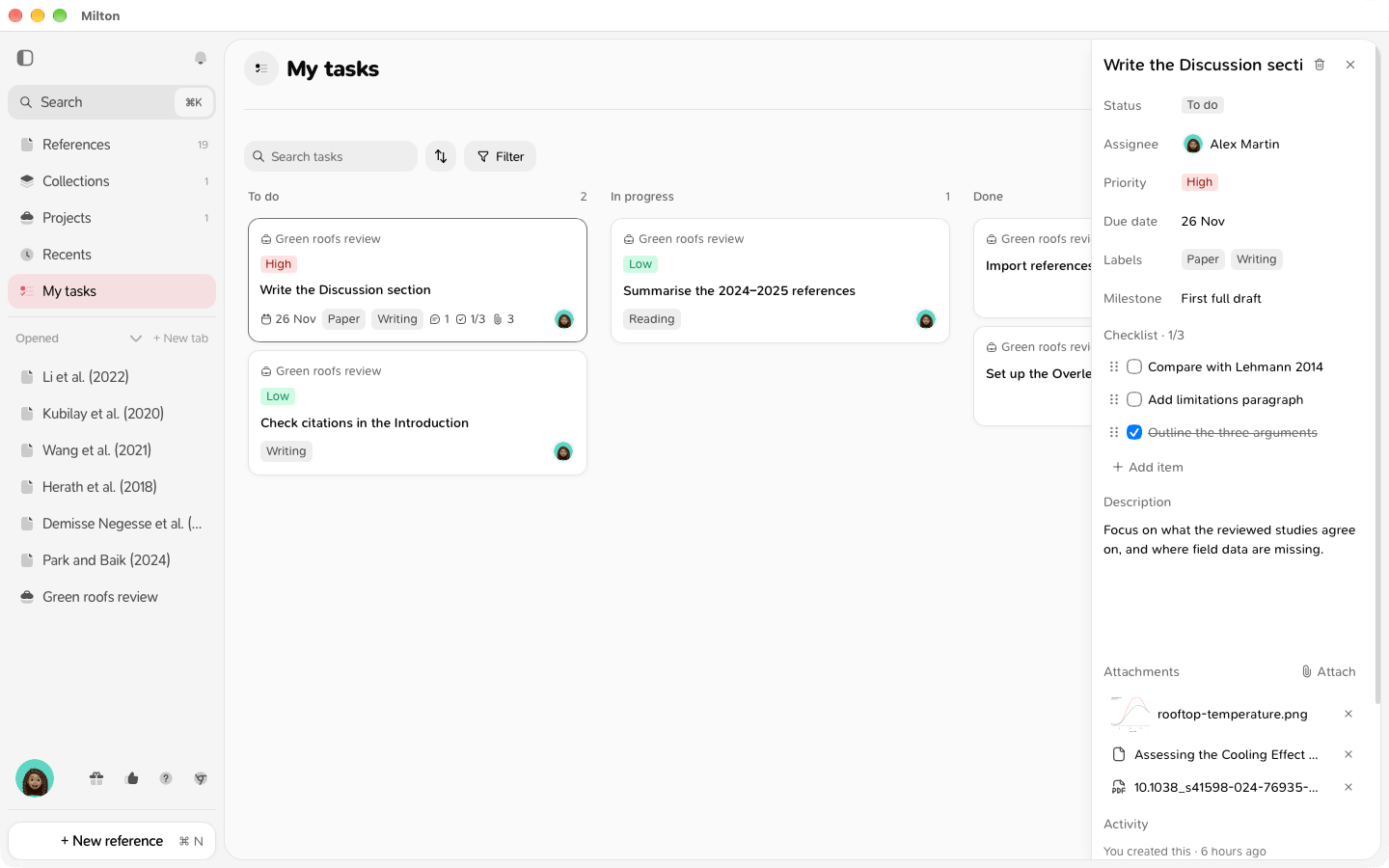
- Click a card to open the task, with all its details, as on the project’s board.
- Drag a card to another column to move the task on its project’s board.
Reminders
Milton reminds you under the bell of tasks assigned to you that are due soon:- “Task is due tomorrow · project”
- “Task is due today · project”
- “Task is overdue · project”
Good to know
- You also get a notification when someone assigns you a task, or mentions you in a task’s comments.
- If you’re removed from a shared project, its tasks leave My tasks.