Before you start
- Only the project’s owner (the person who created it) can invite people.
- Inviting people is part of a Milton subscription. The people you invite can be on the free plan. See Plans.
Invite people by email
- Open the project.
- Click the share icon (Share this project) on the right of the project’s name. You can also choose Share in the ⋯ menu on the project’s card or in the project’s header.
-
On the Share tab, type one or more email addresses in the field. Separate them with commas, semicolons or line breaks.
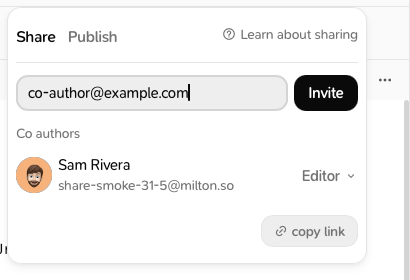
- Click Invite (or press Enter).
Invite people with a link
- Open the Share tab as above.
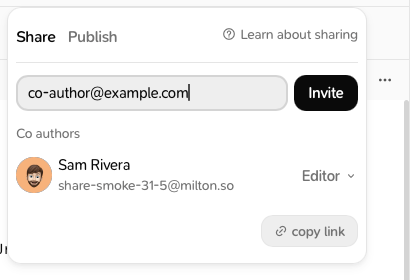
- Click copy link at the bottom. Milton confirms with “Invitation link copied.”
- Send the link to the person.
The member list
The Share tab lists who has access, in three groups:- Co authors: the owner and the editors
- Viewers
- Pending…: people you invited who haven’t joined yet
Limits and messages
- There’s no limit on how many people can be members of a project.
- You can send up to 20 email invitations a day, and 200 in total. Past the limit you’ll see “You’ve sent all your invitations for the day. Try again in 24 hours.”
- “They already have access to this.” means the person is already a member.
- “That’s your own address — you already have access.” means you typed your own email.
Co-authors’ pictures
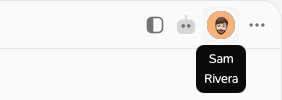
Once someone has joined the project, the share icon is replaced by the pictures of its members in the header (up to four, then “+N”). Point at a picture to see the name. Click the pictures to open the same sharing panel. Members who aren’t the owner see the list but can’t change it.