

.ipynb) in Python and R, on your device. Co-authors can edit them with you live.
You need Python or R installed on your device. See Write and run R or Python scripts.
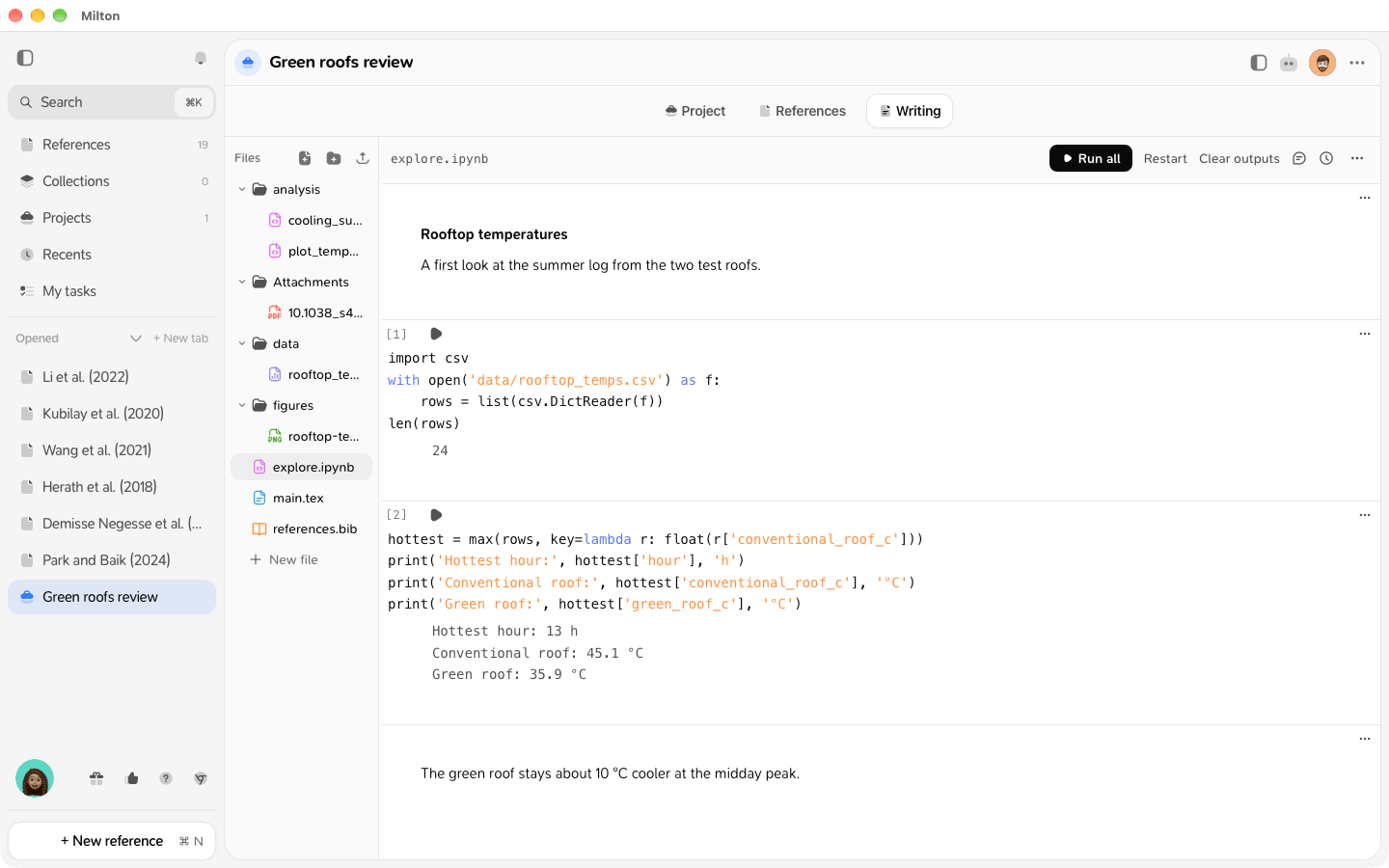
Open a notebook
Upload an.ipynb file in the project’s Writing tab and open it.
Notebooks added before Milton 1.6 are read-only. Upload them again to edit and run them.
Run it
- Run all runs every cell. It becomes Stop while running.
- Shift + Enter runs a cell and moves to the next one. Mod + Enter runs it and stays.
- Restart starts Python or R again from scratch. Until then, variables are kept from one cell to the next.
- Clear outputs removes all outputs.
Edit cells
Use a cell’s menu (Cell actions) to Add code cell, Add markdown cell, Move up, Move down, Change to markdown or Change to code, or Delete it.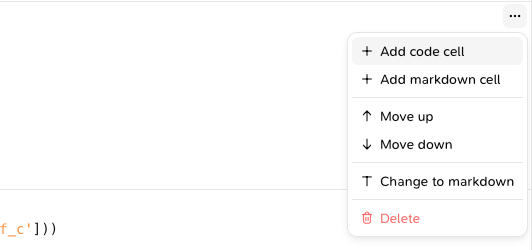
Good to know
- Outputs are saved in the notebook and shared with co-authors. The last person to run a cell wins.
- Limits: 1 MB of text per output, 5 MB per image, 25 MB of outputs per notebook.
- Jupyter magics, widgets and languages other than Python and R aren’t supported.
- Save a copy… in the Editor options (⋯) menu exports a standard
.ipynb. - If Python or R is missing, Milton says so, with a link to Settings. A notebook in another language shows “Milton runs Python and R notebooks”.