

Before you start
- Install the command-line tool on your device:
- Claude Code (
claude), version 2.1.310 or later - Codex (
codex), version 0.166.0 or later
- Claude Code (
- Open a terminal and sign in to it once.
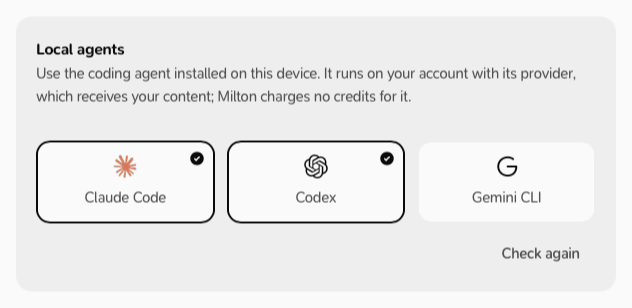
- In Milton, go to Settings → AI management → Local agents. A check mark shows the agent is ready. Without one, point at the agent to see what’s missing (“Not installed”, “Needs an update”, “Could not start” or “Sign in: open Name in a terminal”), fix that and click Check again.
Use it
- Open a project and its Agent panel (the robot icon).
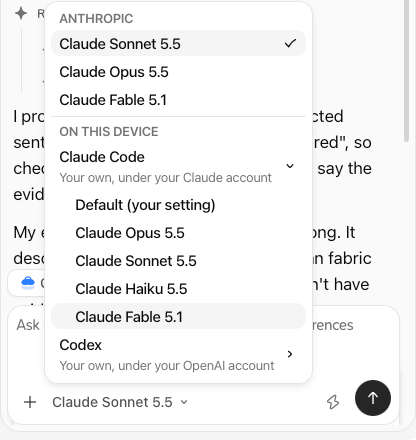
- Open the model menu.
- Under On this device, choose Claude Code or Codex.
Permission requests
When the agent wants to run a tool, Milton asks: Reject, Allow once or Always allow in this project. (Running shell commands is never “always allowed”.) To take back an “always allow”, go to Settings → AI management → Local agents → Always allowed and click Remove.Choose its model
- In the model menu, under On this device, expand Claude Code or Codex.
- Choose Default (your setting) or a model.
If it doesn’t start
- “Name was not found on this device. Check it in Settings → AI management.”: install it, or click Check again.
- “Sign in again in Name, then send your request again.”: sign in from a terminal.