

Link a page
- In a page, type [[.
- Start typing the page’s title, then pick it in the list.
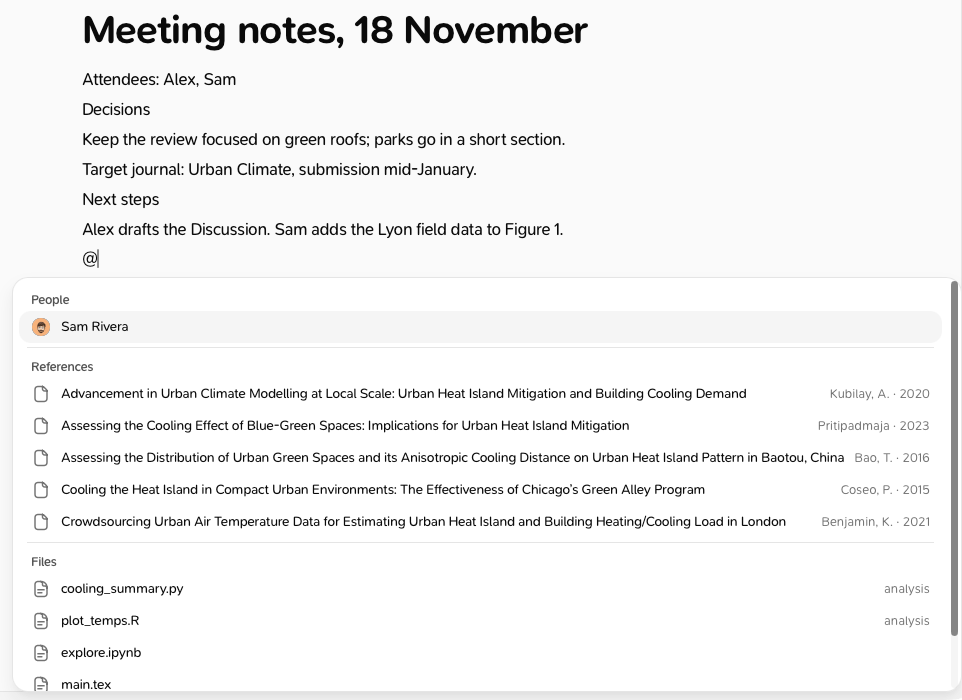
Mention a person, a page, a reference or a file
Type @ and start typing. The list has up to four groups: People, Pages, References and Files. Pick one to insert it.- A reference opens in its tab when you click it. Only the project’s references are listed.
- A file opens in the project’s Writing tab.
- A person is a member of the project.
Notify a co-author
When you mention a co-author in a shared page, they get a notification under the bell: “Mentioned you in page · project”. Clicking it opens the page. They’re notified once, a few seconds after you insert the mention. If you undo it right away, nobody is notified. Pasting a mention doesn’t notify anyone. A mention in a task’s description doesn’t notify anyone. To get a co-author’s attention on a task, mention them in a comment.Private pages
- In a Private page, the list offers your private and shared pages, but no people: nobody else can see the page, so nobody can be notified.
- In a Shared page, private pages are never listed. A link to a private page pasted into a shared page is removed.
Good to know
- A link to a deleted page shows “This page was deleted.” and can’t be clicked. It works again if the page is restored.
- A reference that isn’t in your library shows “Reference unavailable”. A deleted file shows “File unavailable”.
- [[ and @ don’t work inside code.
- Viewers can click links, but can’t add any.