

Upgrade
- Open the profile menu (your picture at the bottom-left of the sidebar) and click Upgrade, then click Upgrade now on the Monthly or Yearly plan. You can also go to Settings → Plan and billing and click Upgrade now there.
- Milton says “Redirecting to checkout…” and opens the payment page in your browser.
- Pay, then go back to Milton.
Manage or cancel
- Go to Settings → Plan and billing.
-
Click Manage on your current plan.
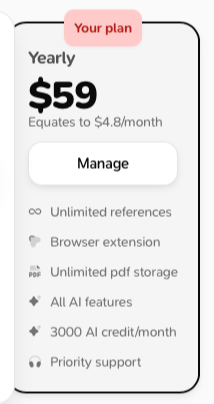
- The billing portal opens in your browser. Change your plan, update your card, download invoices or cancel there.
What happens to your data if you stop paying
Your library stays on your device: references, PDFs, notes and highlights. Cloud backup, sync, sharing and AI features stop. Your existing cloud backup isn’t deleted, and items you deleted stay restorable for 90 days after your subscription ends (instead of the usual 30), so nothing is lost if you subscribe again.Problems
- “Could not open checkout. Please try again.” or “Could not open billing portal. Please try again.”: check your connection and try again.
- “Billing portal not configured. Please contact support.”: contact support.