

Open the board
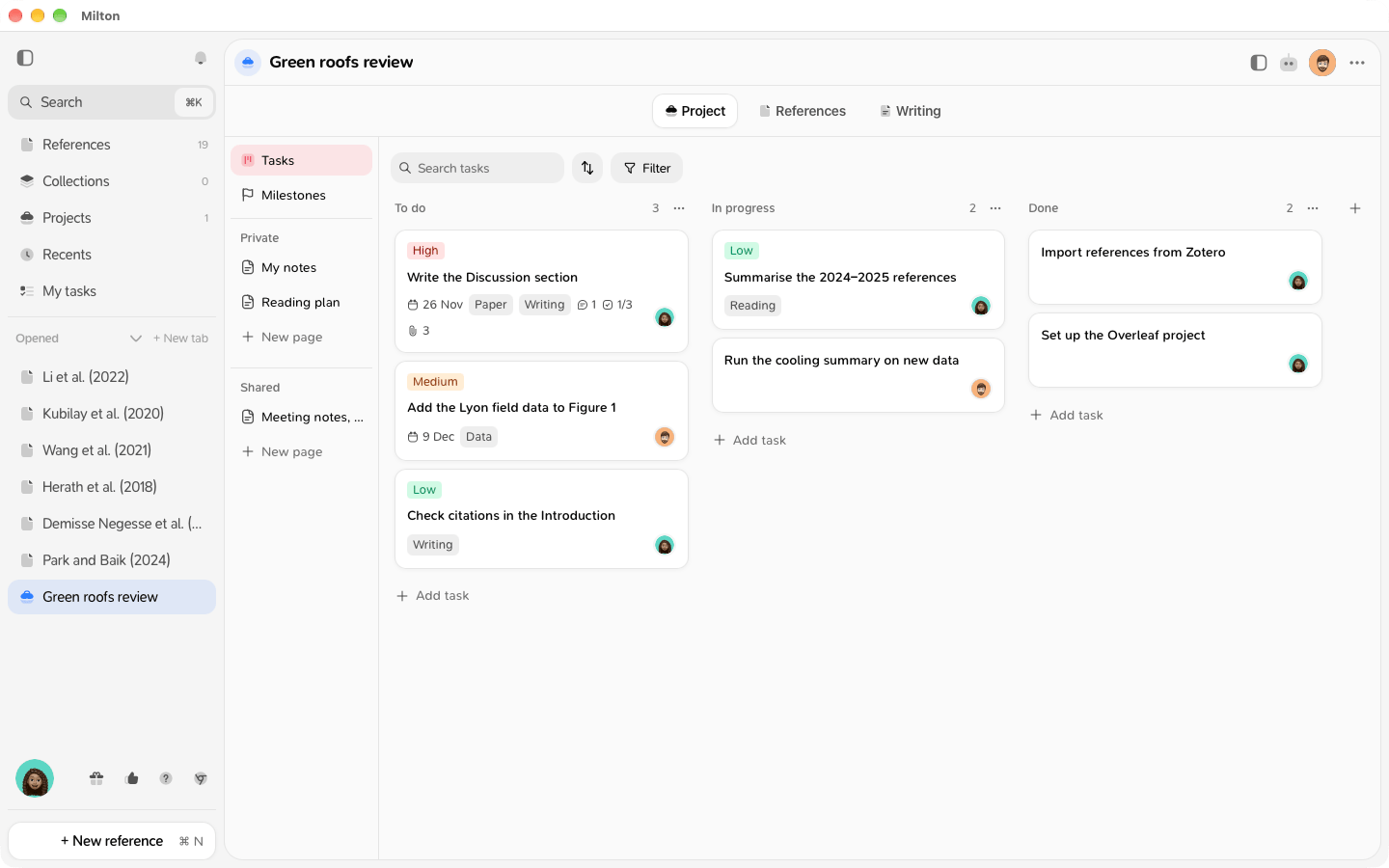
- Open the project and click the Project tab.
- Click Tasks at the top of the column on the left.
Add a task
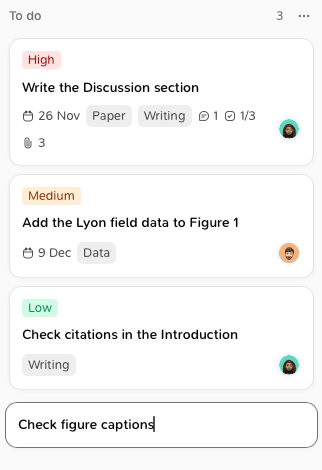
- Click Add task at the bottom of a column.
-
Type a title and press Enter.
Move a task
- Drag a card to another column, or up and down in its column.
- Or open the task and change its Status: the task moves to the end of that column.
What a card shows
A card shows the task’s title, its priority, its due date (in red when it’s overdue), its labels, the number of comments, checklist items done and attachments, and the face of the person it’s assigned to.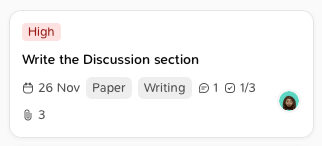
Manage columns
- To add a column, click + (New column) to the right of the last column, then type its name.
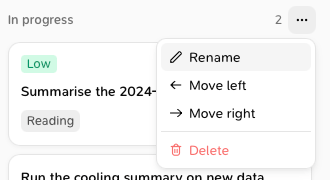
- To reorder columns, drag a column by its header, or use Move left and Move right in its ⋯ menu.
- To Rename or Delete a column, use its ⋯ menu.
Delete a task
Open the task and click the bin icon (Delete task) at the top of the panel. Click Undo in the “Task deleted” message to bring it back.Good to know
- In a shared project, everyone sees the same board, and changes appear for your co-authors right away.
- Owners and editors can change the board. Viewers can read it and comment on tasks, but not change anything else.
- To find tasks on a busy board, see Search, filter and sort tasks.
- Every task assigned to you, in all your projects, is in My tasks.