

Search everything
Press Mod + K (⌘K or Ctrl+K) to open search. Type a few words. Results cover your references, collections and projects, and also match the text of your notes and PDFs. Use the All, References, Collections and Projects tabs to narrow down.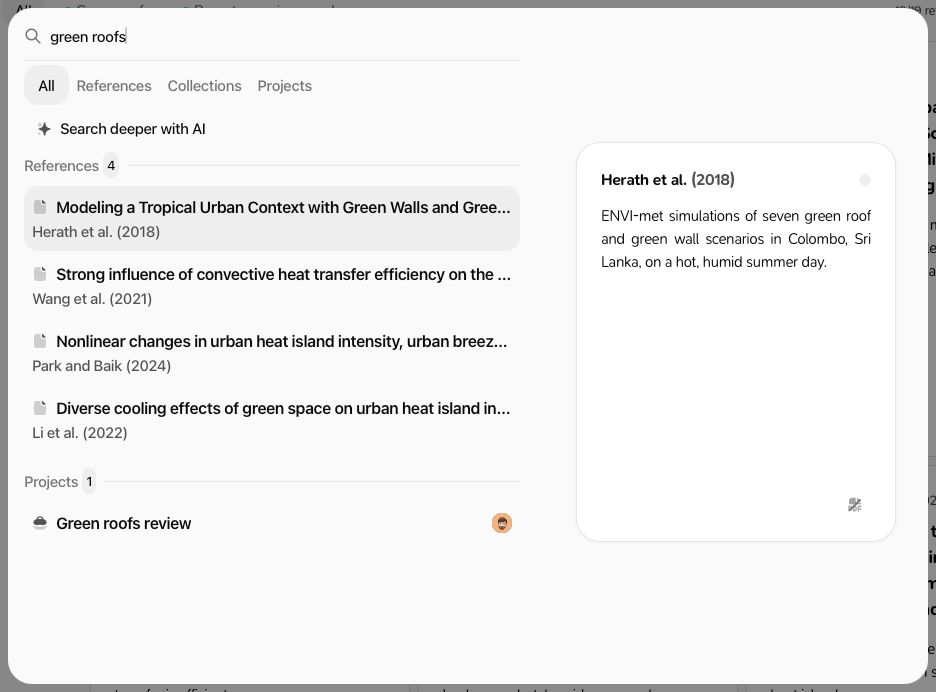
Search the list
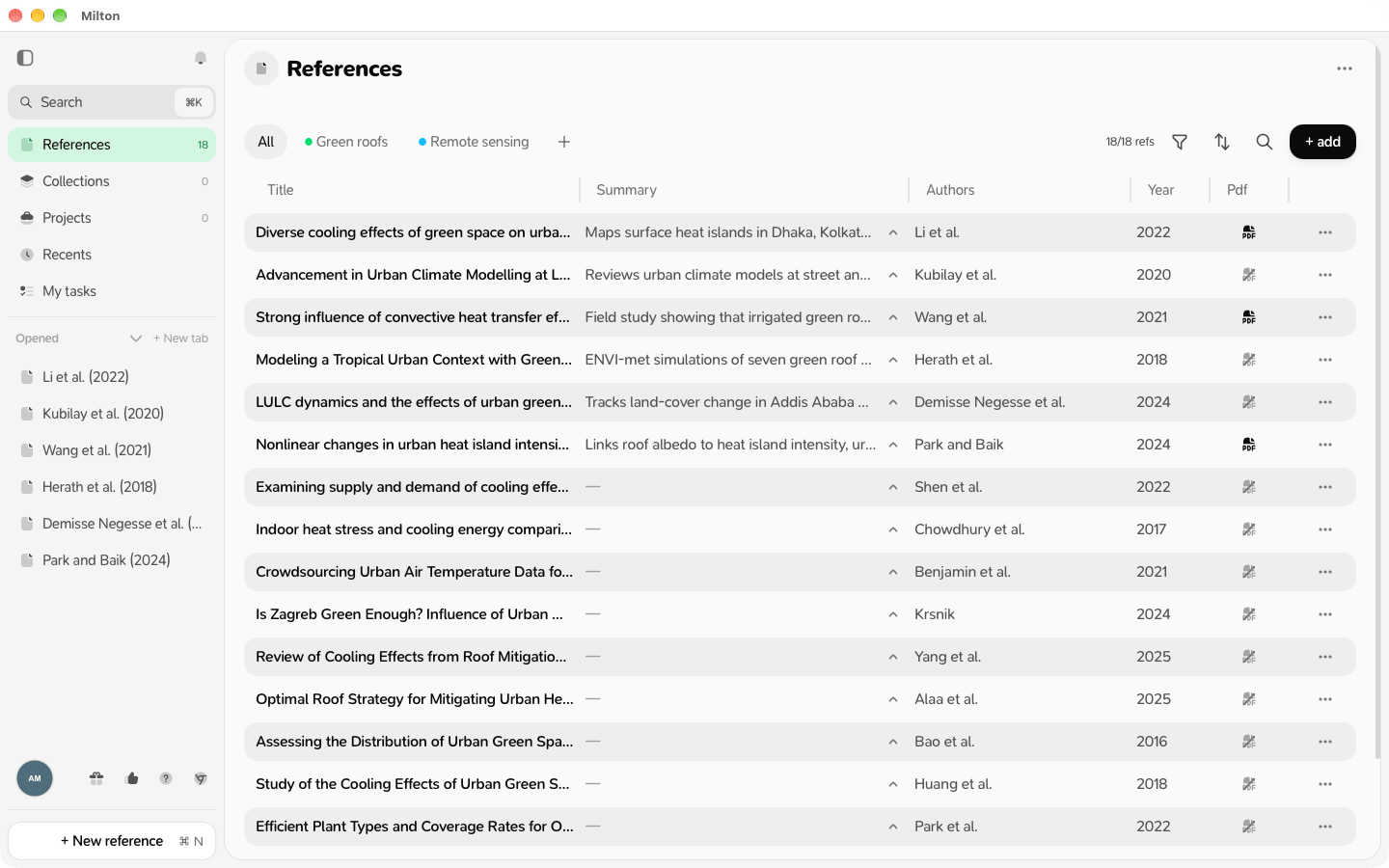
On the References page, click the search icon and type. Every word must match the title, authors, abstract, journal, tags or notes.Cards or table
Click More options (the settings icon at the top right) → Display and choose 1 Column, 2 Columns, 3 Columns, Auto columns or Table. Milton remembers your choice for each page.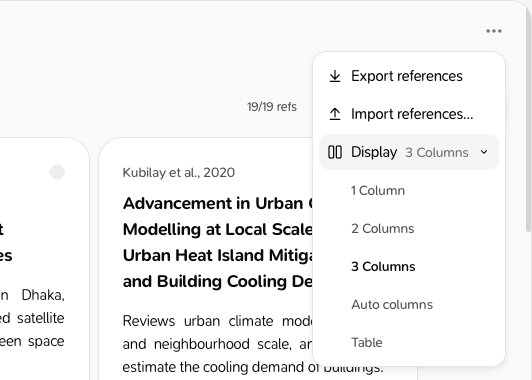
Sort
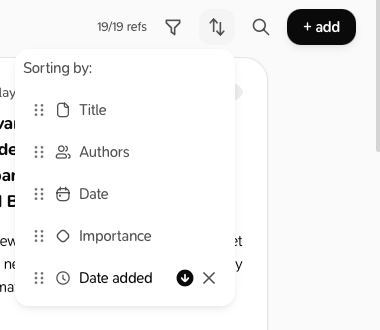
- Click the sort icon (Sort references).
- Choose a field: Title, Authors, Date, Importance or Date added.
- Pick ascending or descending. Add more fields to sort by several; drag them to change the order.
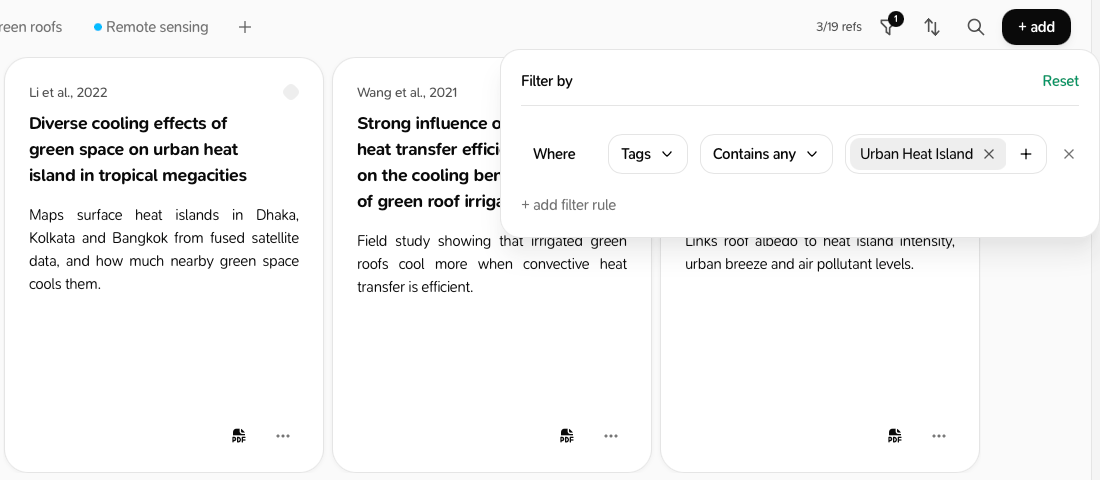
Filter
- Click the filter icon (Filter references).
- Click + add filter rule and build a rule, for example “Where Tags contains any climate”.
- Add more rules and join them with And or Or.
Save a view
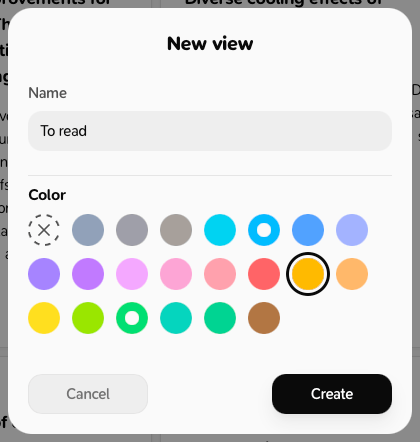
A view is a saved filter and sort, shown as a chip at the top of the list.- Click + (Create view) next to the chips.
-
Give it a Name and a Color, and click Create.
- Set its filter and sort. Changes save into the active view as you go.
