

Create a collection
- Click Collections in the sidebar, then + New.
-
Type a Name and, if you want, a Description.
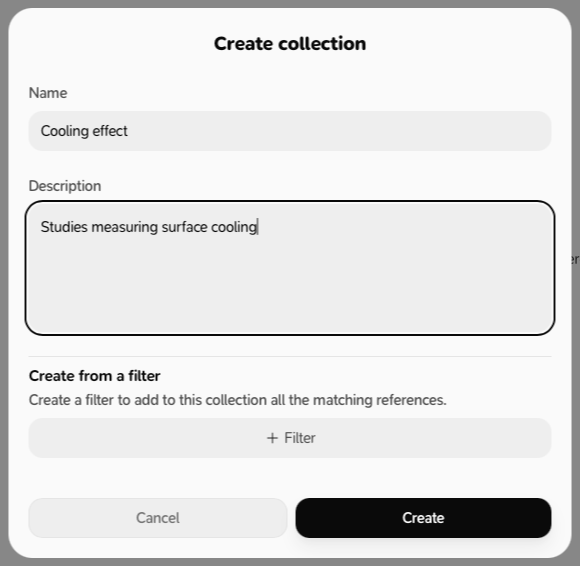
- Click Create.
Fill it automatically with a filter
When creating it, under Create from a filter, click + Filter and add rules (for example “Tags contains any climate”). Milton shows how many references match. Turn on Smart filter to also add every future reference that matches.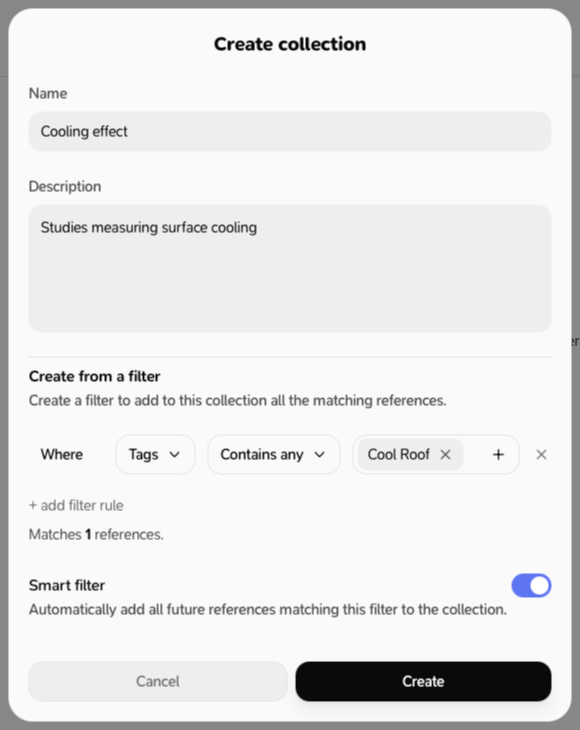
Add references
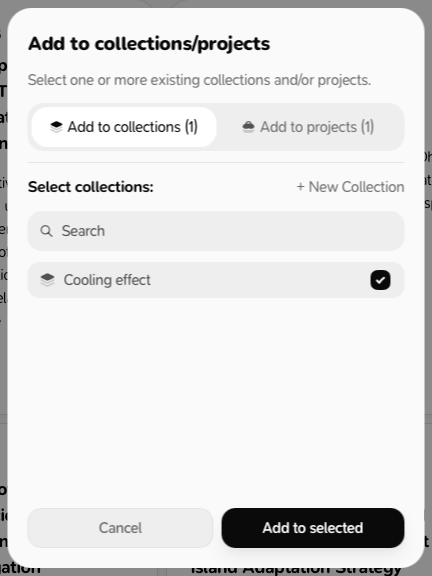
- From a reference: ⋯ → Add to collections, tick collections, then Add to selected.
- From several references: select them → Add to collections.
- From the collection: click + add, tick references and confirm.
Remove a reference
Inside the collection, open the reference’s ⋯ menu and choose Remove from collection. The reference stays in your library. Mod + Z undoes it.Manage a collection
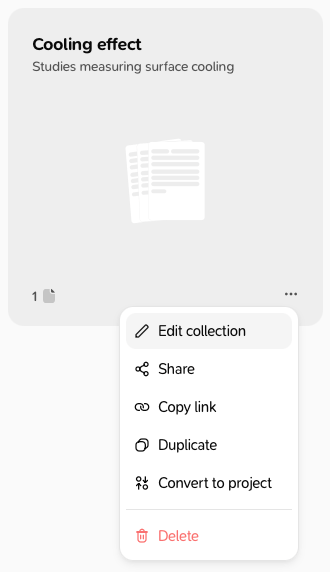
Open a collection’s ⋯ menu:- Edit collection: rename it or change its description
- Duplicate: makes a copy named ”… (copy)” with the same references (without the smart filter)
- Convert to project: turns it into a project (you can undo for a few seconds)
- Share: publish it as a public page. See Publish a public page.
- Export references
- Delete
DELETE to confirm.
Collections can’t be nested inside each other, and can’t be shared with co-authors. To work with others, use a project.