Before you startThe built-in agent needs a subscription and uses AI credits. On any plan, you can use your own local agent (Claude Code or Codex) instead.
Open the agent
In a project, click the Agent panel button (robot icon) in the header. It also opens when you go to the Writing tab. Type your request in plain words, for example “Shorten the introduction to 300 words” or “Find references that support the second paragraph”. Type @ to point the agent to references, collections, projects or files, and / to use a skill.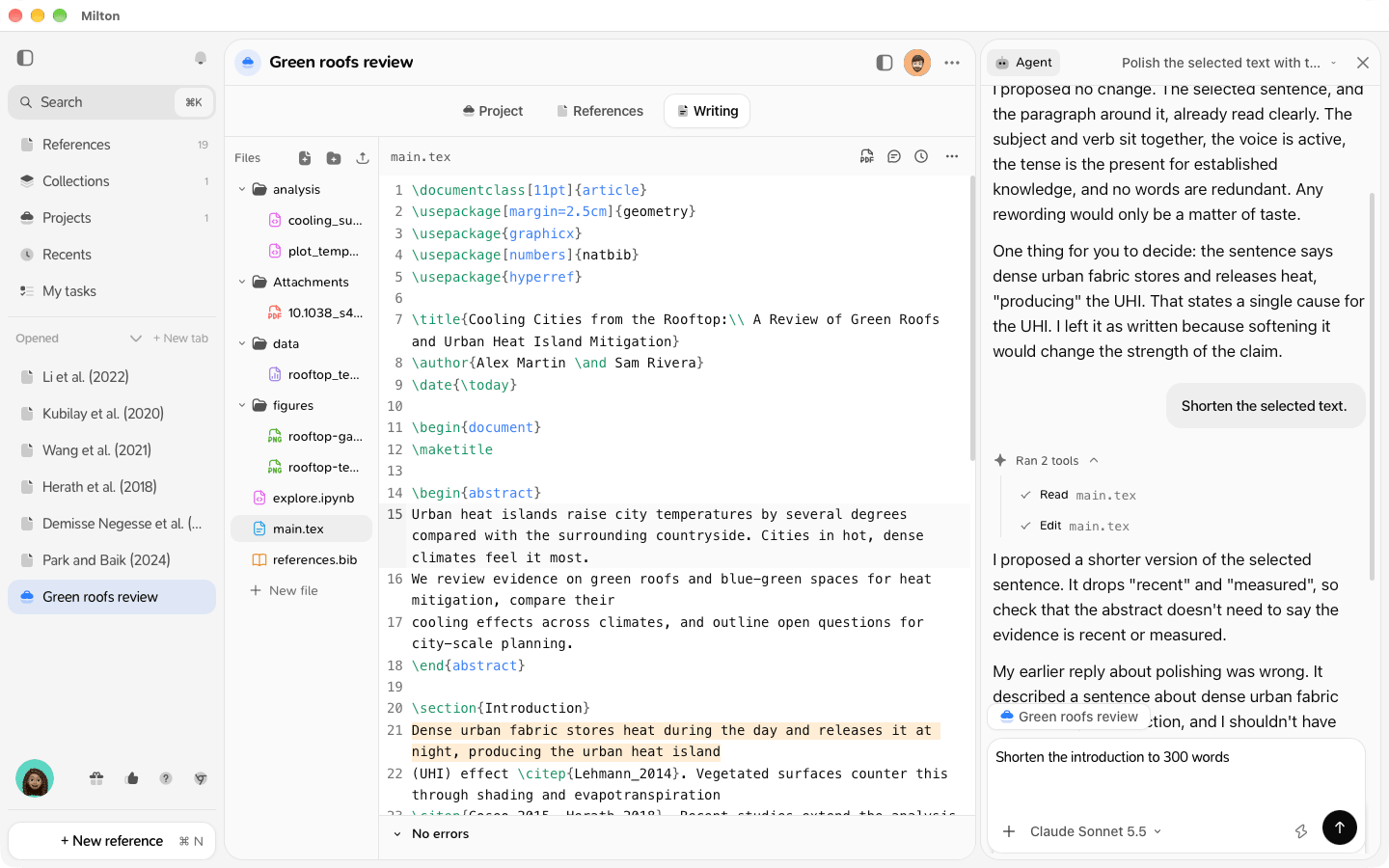
Review the changes
The agent’s proposals appear as cards. For each change:- Apply or Discard, or Apply all / Discard all
- Create file for a new file
- Side by side or Inline to compare
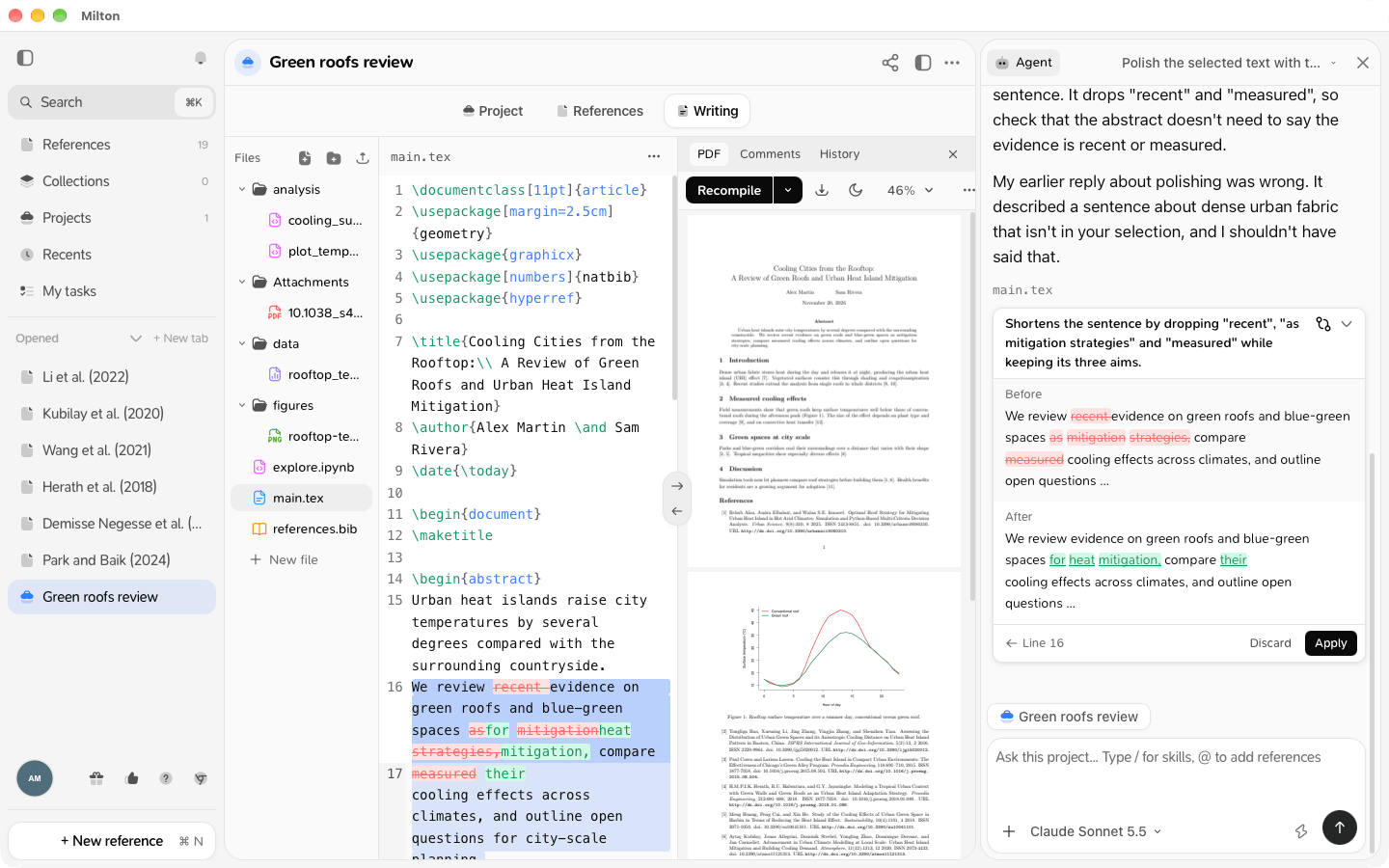
Ask about a selection
Select text in a file, then right-click (or press Mod + Shift + A) and choose Polish, Rephrase, Shorten, Fix the English, Suggest citations, Check citations or Ask the agent….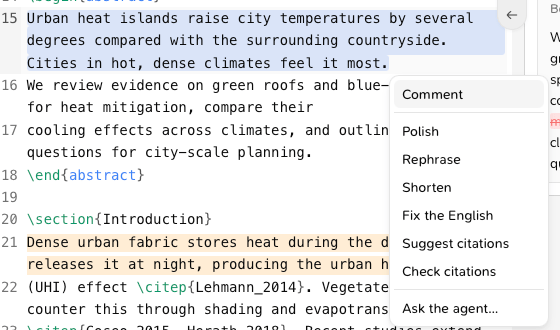
What the agent can do for you
Just ask; it picks the right specialist:- Find references in your library.
- Support a claim: it searches the text of every PDF in your library and your notes, then shows references that Supports or Qualifies or contradicts your sentence. Choose them and click Cite selected or Add to project.
- Check the LaTeX and fix compile errors. You can also click Fix with agent on a compile error.
- Check the maths: it recomputes numbers and statistics and tells you what doesn’t add up. It never changes your numbers itself.
- Search outside your library: it can search the web and Crossref. Works it finds arrive as cards with Add to library or Discard; it only cites them once you’ve added them. Each web search uses credits.