Cite while you type
- Add the reference to your project.
-
In your
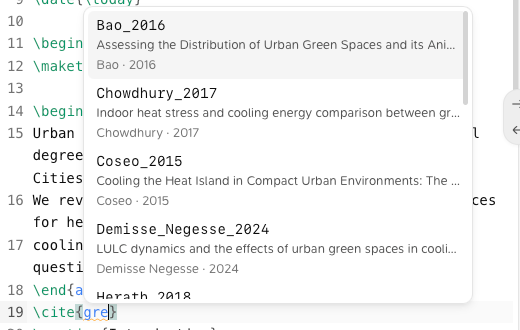
.texfile, type\cite{. -
Pick the reference from the list. Search by key, author, title or year.
Your bibliography is automatic
Milton writes every reference of the project intoreferences.bib, at the top of the project, and keeps it up to date. You don’t edit it: change a reference in Milton and the bibliography follows.
If your main file doesn’t load a bibliography yet, Milton shows “This file doesn’t load a bibliography yet.” Click Add the bibliography to add it before \end{document}.
You can keep your own .bib files too, under another name: for example \bibliography{references,mine}.
Citation keys
Each reference has a key likejacquel2024climate. Milton uses, in order: a Citation Key you set in the reference’s Info, a Citation Key: line from Zotero’s Extra field, or a key it generates. Once set, a key doesn’t change when you edit the reference.
Underlined keys
- “key is in your library but not in this project.”: click Add to project.
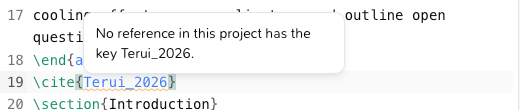
- “No reference in this project has the key key.”: check the spelling, or add the reference.
- If two references share a key, the older one keeps it and the newer one becomes key-2 in the bibliography. Give one of them its own Citation Key.