

Create a project
- Click Projects in the sidebar, then + New.
-
Type a Name, and if you want a Description and a Status (Idea, Work in progress or Done).
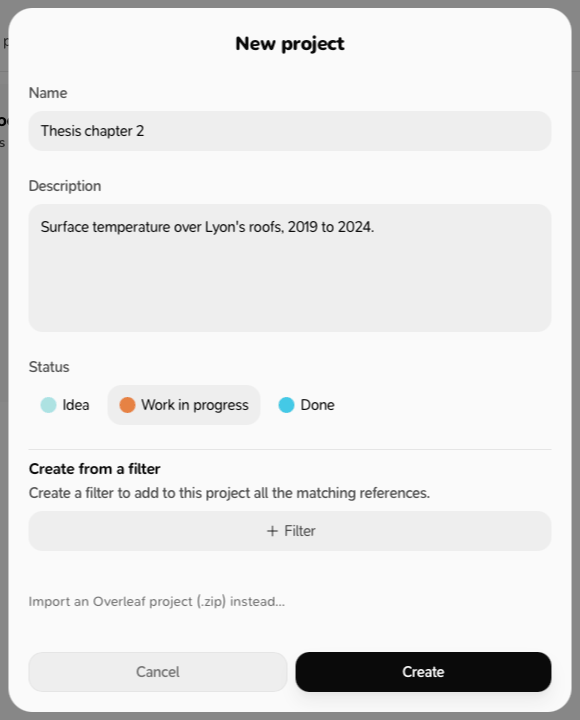
- Optional: Create from a filter adds every matching reference; Smart filter keeps adding new ones.
- Click Create.
Add references
- In the project, open References and click + add. Tick references and click Add selected.
- From a reference: ⋯ → Add to projects.
- From several references: select them → Add to projects.
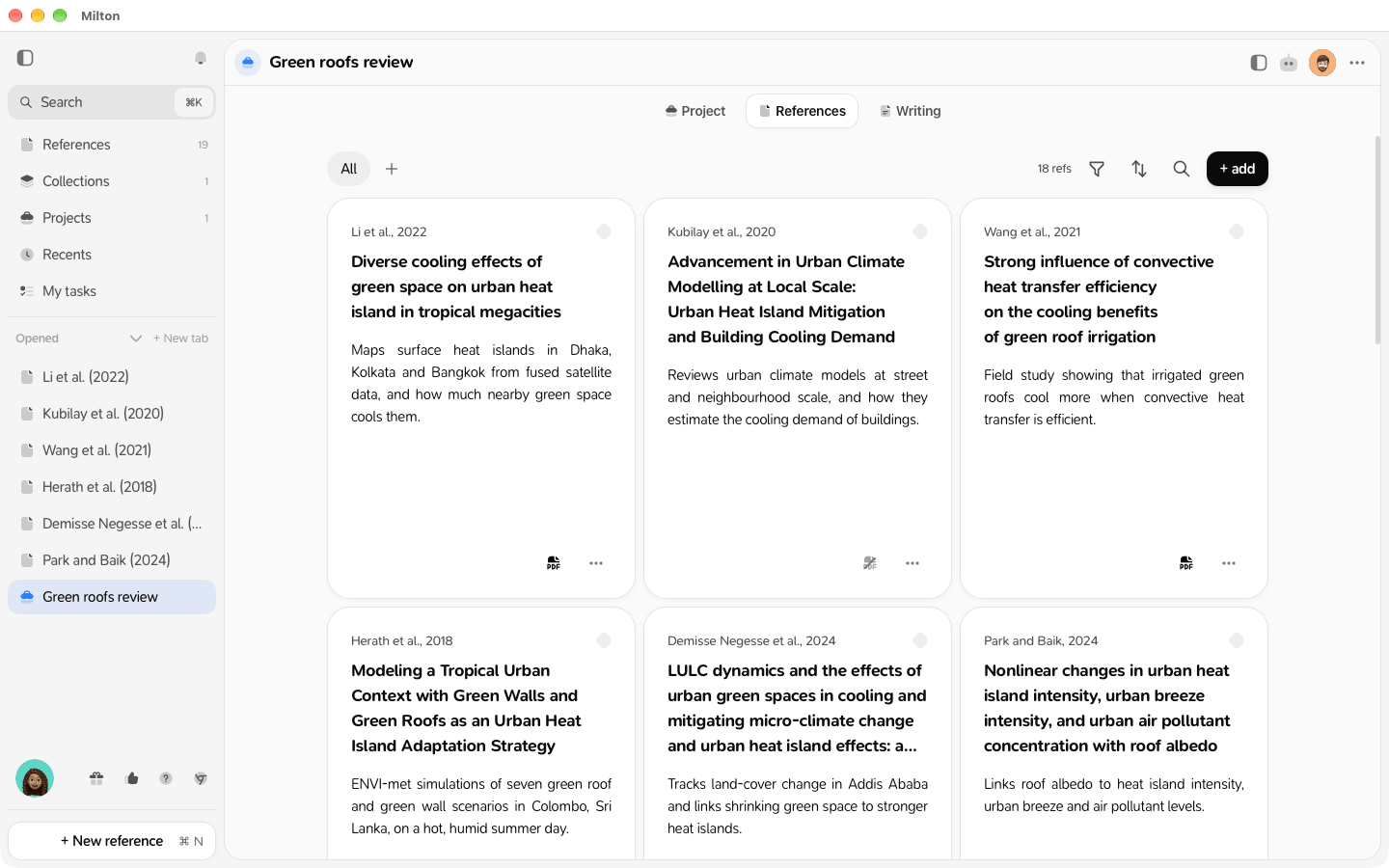
Inside a project
The project’s name is at the top, with its buttons on the right. The tabs are on the row below:- Project: the project’s pages, its Tasks board and its Milestones. See Project pages and My notes and Track tasks on a board.
- References: its references, with their own views, sort and filters
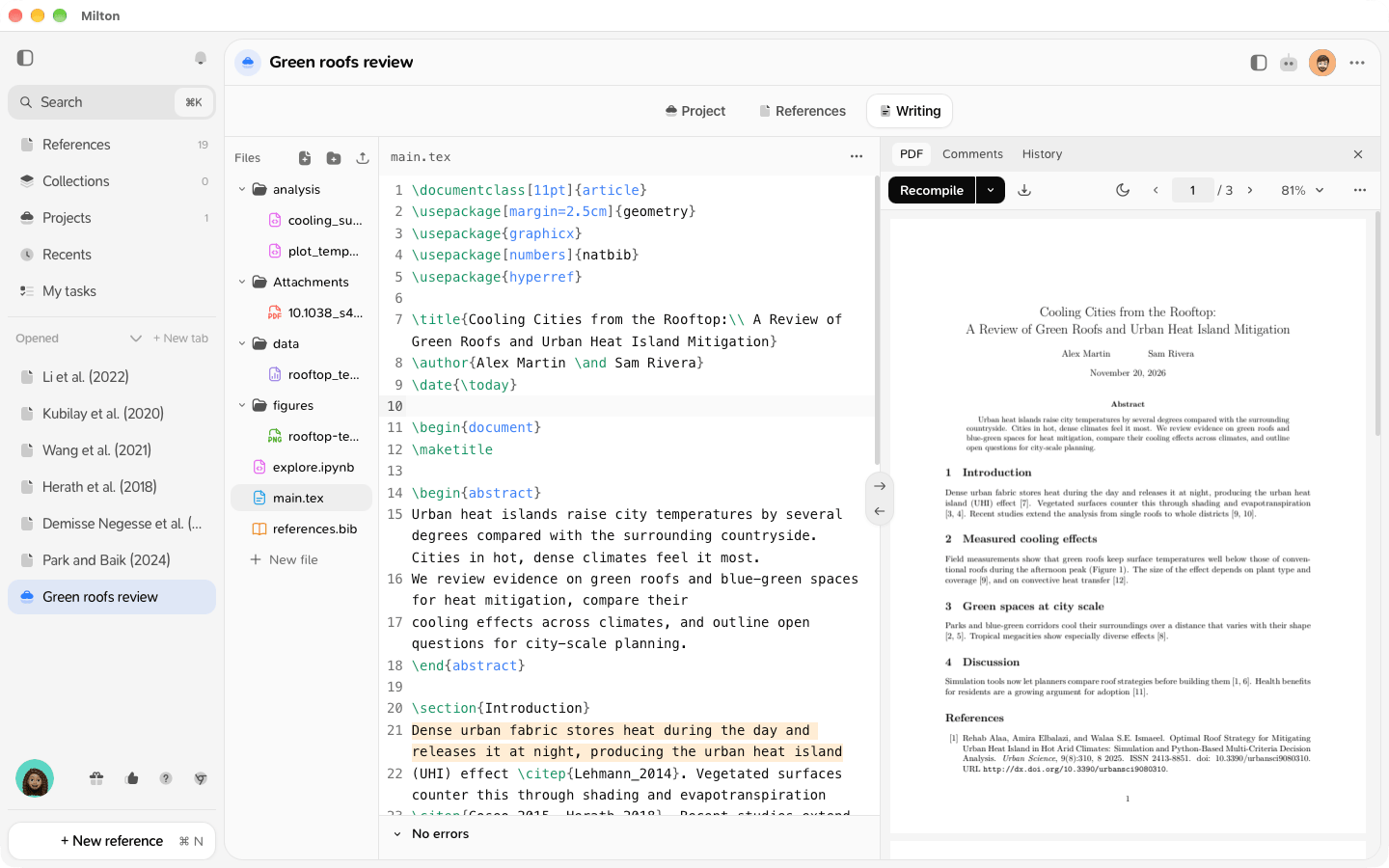
- Writing: the project’s files: LaTeX, code, data, figures. See Project files.
- Share this project (a share icon). Once a co-author has joined, it’s replaced by their pictures; click them to open the same sharing panel. See Invite co-authors.
- More options (⋯): the same menu as on the project’s card.
- Agent panel (the robot icon): the project’s AI chats and the agent. See Chat with your library.
Manage a project
From a project card’s ⋯ menu, or More options (⋯) in the project’s header: Export references, Display, Edit project, Open chat in side panel, Share, Copy link, Duplicate, Convert to collection, Delete.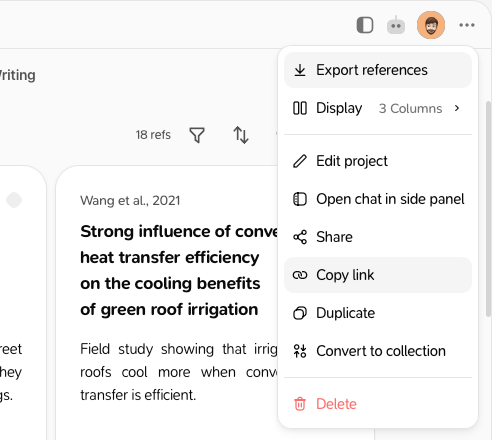
DELETE to confirm.