Sign up with your email
- Open Milton and click Sign up on the sign-in screen.
- Enter your Email and a Password of at least 8 characters.
- Click Create account.
- Check your inbox. Type the 6-digit Verification code from the email and click Validate.
Sign up with Google
- On the sign-in or sign-up screen, click Continue with Google.
- Your browser opens. Choose your Google account and approve.
- Go back to Milton. It shows “Signed in with Google”.
Set up your profile
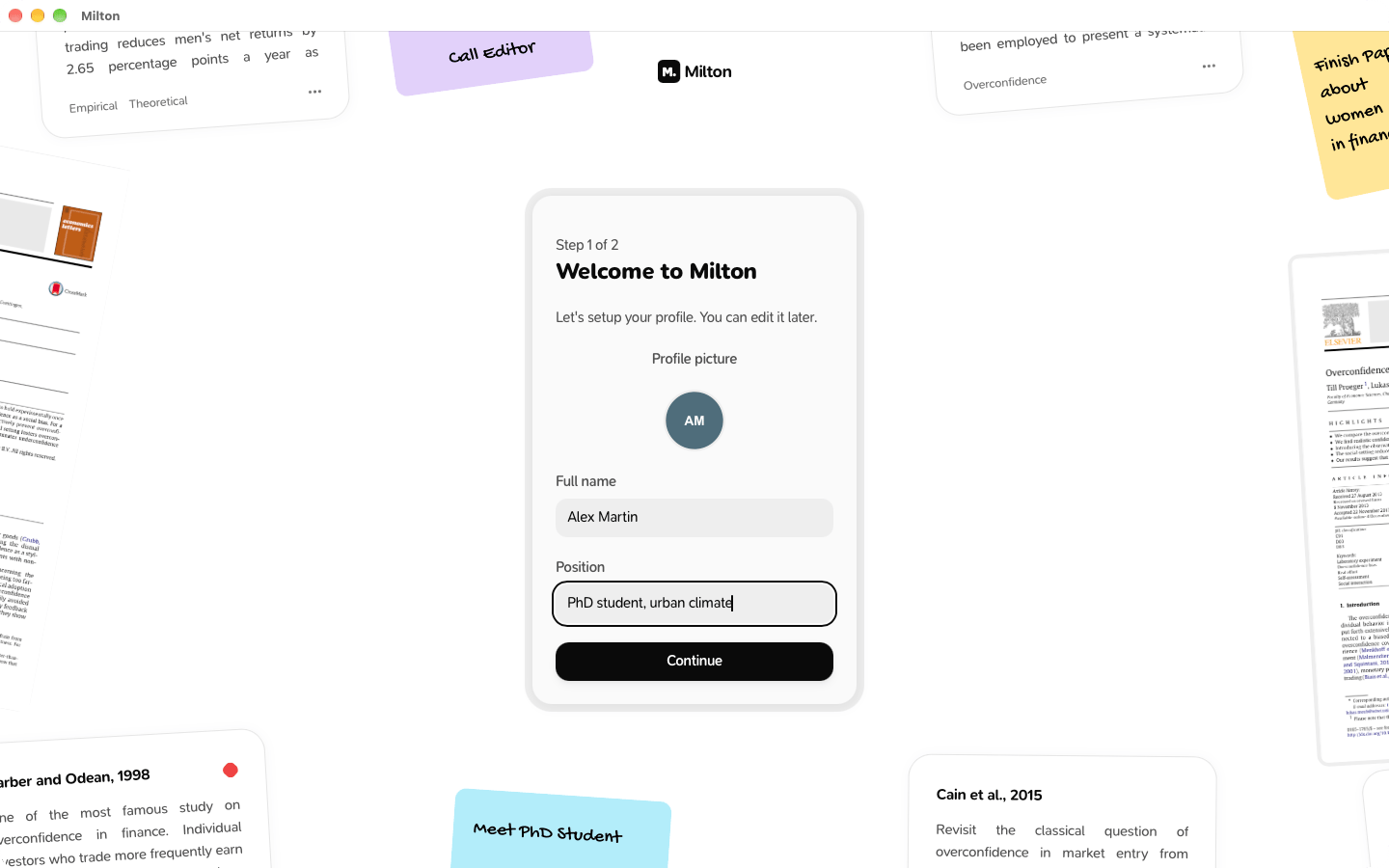
After you sign up, Milton walks you through a short setup:- Welcome to Milton: add a Profile picture, your Full name and Position (optional, you can change them later in Settings). Click Continue.
- Connect Zotero to Milton: click Connect Zotero to bring in your Zotero library, or Skip for now. See Import from Zotero.
- Have a code?: if a friend gave you a referral code, type it in My code and click Use code. Otherwise click Skip. See Refer a friend.
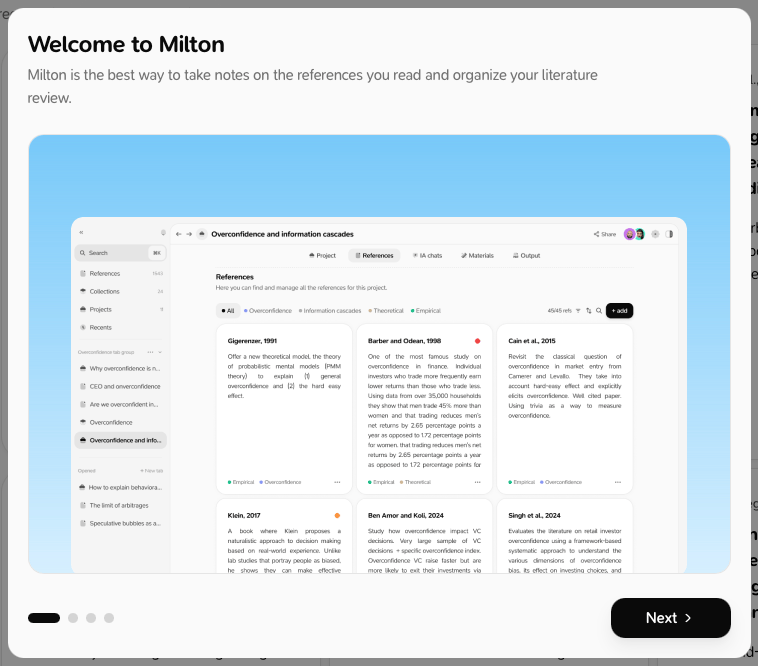
- Click Let’s start, then go through the four-slide welcome tour with Next and Done.